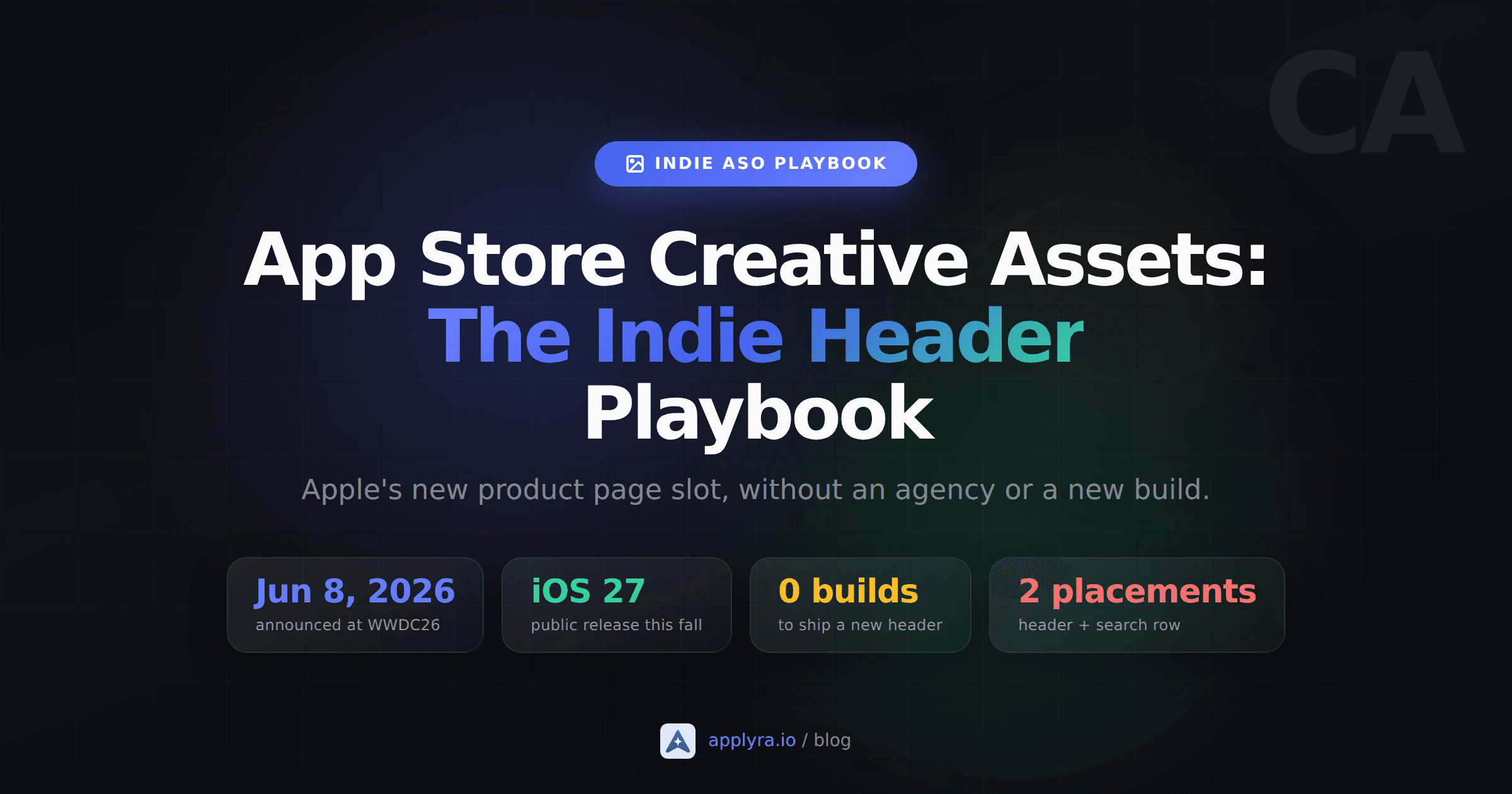
Apple just shipped app store creative assets, a new product page header and search image field, and dropped the binary-update tax on changing them. For indies, that second part is the bigger deal. For the first time, you can ship a fresh hero image on a Tuesday afternoon and have it live by Friday without touching Xcode.
It was announced at WWDC26 on June 8 and lives inside a new Asset Library in App Store Connect. Developer beta is live now. Public release lands this fall alongside iOS 27. This post is the realistic playbook for using it as one person.
What you'll learn
- What creative assets are and where they actually appear
- Why the Asset Library matters more than the new pixels
- Which apps should ship a header, which should pass, and what fits inside one
- A two-week pipeline a solo dev can run without a designer
- The watch-fors before you spend three weekends on a video
What app store creative assets actually are
Creative assets are images and videos that live next to your existing screenshots and preview videos, not inside them. They appear in two surfaces: the product page header at the top of your full listing, and inside the search result row in place of the default screenshots.
The header is the first visual a user sees when they tap your app. The search asset is what they see before they tap. Two slots, two different jobs.
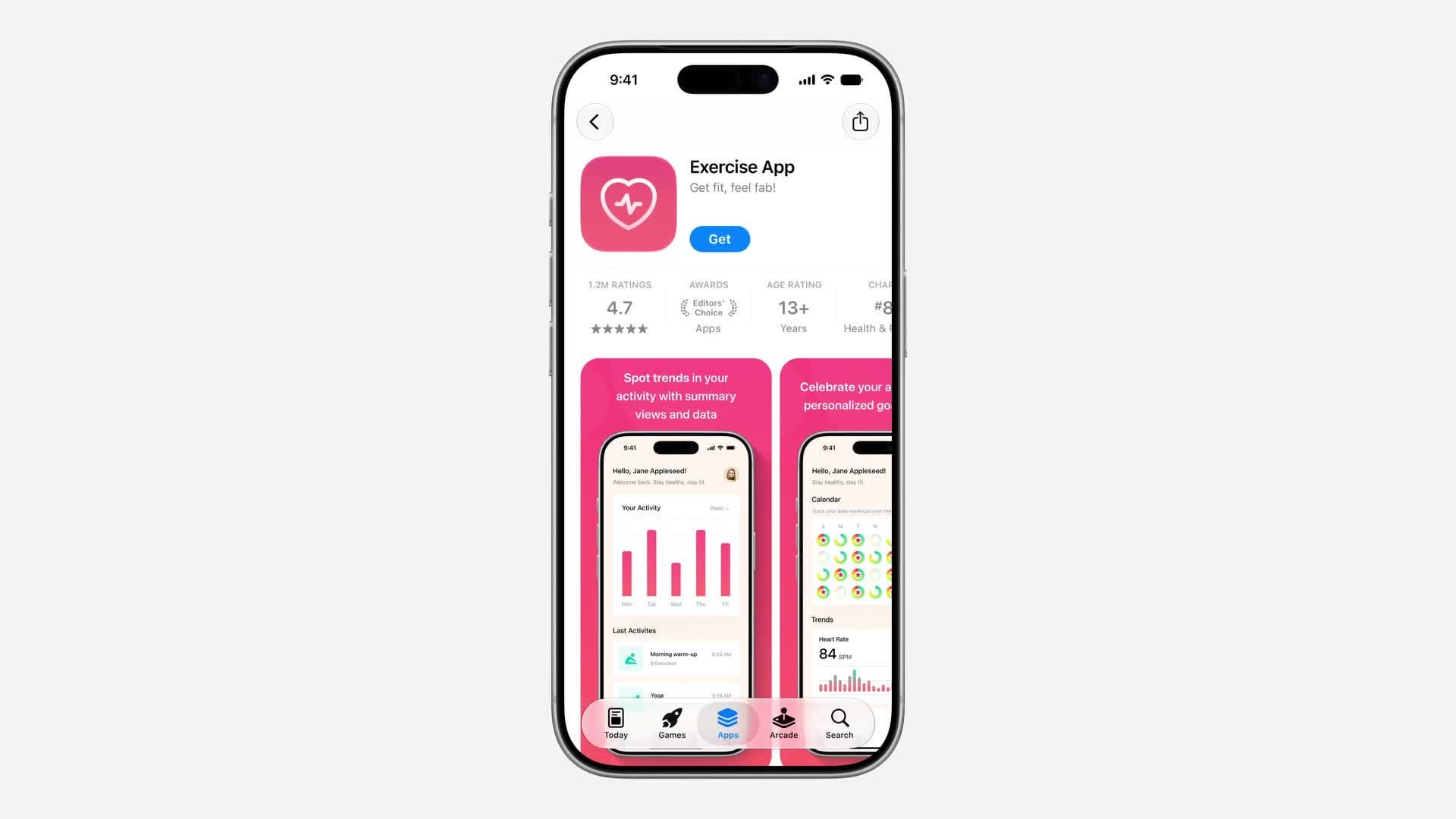
These are not screenshots. They do not need to show the app UI. A travel app can use a destination photo. A game can use character art. An outdoor app can use aspirational footage. Whatever you upload sits in your Asset Library and can be deployed across both placements, Custom Product Pages, In-App Events, and Apple Ads campaigns from the same approved file.
Apple did not publish full dimension and codec specs in the WWDC session itself. The guide says detailed guidance lands "later this summer." Plan in landscape with a centered focal point. Assume video is short and looping until Apple confirms otherwise.
The Asset Library is the real unlock
The Asset Library is the new home in App Store Connect for every visual element your app uses. Screenshots, previews, In-App Event media, and now creative assets. One place, one approval pool.
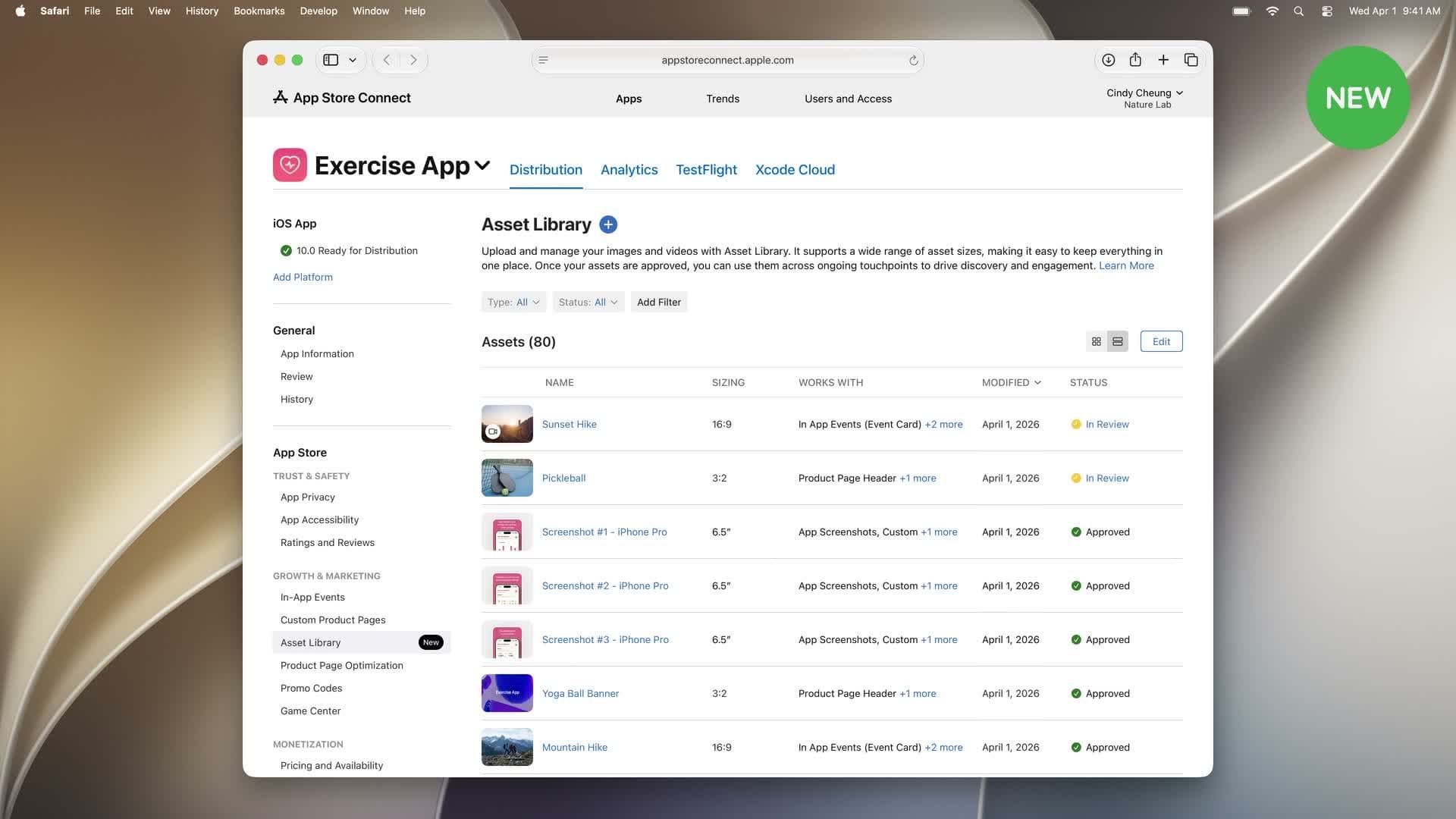
The mechanical change that matters: assets get reviewed independently of your binary. You can submit a new app store header image to App Review without shipping a new build, queueing a TestFlight, or touching the version page. Approved assets can go live in real time.
For someone with an iOS team of one, this is the workflow change of the year. Until now, anything that touched your App Store visuals went through a binary release cycle. Want a Halloween header? Ship a build. Want to test a different hero image for a new feature? Ship a build. The cost of an experiment was a release. Most indies skip creative iteration for that reason. They ship the version they had time to make, then leave it for six months.
That tax is gone. The app store asset library is what indies should evaluate first, even before deciding whether to use the header at all. If you already run a Custom Product Page or rotate In-App Events, you now have one approved media bank you can pull from across every surface, instead of re-uploading the same hero file into four different fields.
What fits in a header (and what's a waste of an afternoon)
Three honest scenarios for the new field.
Ship a static image header if your app has a visual identity that does not show up in screenshots. Brand wordmark, mascot, distinctive color world. A meditation app whose screenshots are mostly buttons benefits from a calmer hero. A finance app whose screenshots are tables benefits from a mood-setting abstract. A photo of a real environment beats a UI close-up almost every time at header scale.
Ship a video header only if the motion earns its 5 to 10 seconds. Auto-playing motion at the top of your listing pulls attention away from the next thing on screen, which is your first screenshot. If the video is gameplay that sells better than your hero screenshot, ship it. If it is a slow camera pan over a logo, the static image was the right call.
Skip the header for now if your screenshots already lead with a strong, single-message panel that the header would visually fight with. Two competing hero visuals at the top of a listing is worse than one. Audit your existing first screenshot first. If it is already doing the header's job, write that off as your header and spend the afternoon on something else.
Same calculus for the search asset. The default is your first three portrait screenshots, which are tuned for the conversion job. Replacing them with a non-UI creative is a real trade. It can win for brand-heavy apps where the icon plus a moody image beats a feature shot. For utility apps where the screenshot communicates the function at a glance, default screenshots are probably still the better tap magnet.
One detail worth flagging. Text rendered onto the header will not be indexed the way screenshot captions are. If you want a phrase to do keyword work, put it on a screenshot panel, not the header.
A two-week indie pipeline (no agency)
A realistic, no-designer cadence.
Week 1, day 1. Pick one app and one placement. Most indies should start with the header on their main app and leave the search asset alone for round one. One variable per experiment.
Day 2 to 3. Sketch three header concepts on paper, then mock them up in whatever tool you already use. The header is landscape, large, and rendered at small thumbnail sizes in some contexts too. Make sure the concept reads when cropped. Cut anything with small text.
Day 4. Pick one. Upload it to the Asset Library and submit for review independently of your build. Note the submission date.
Week 2, day 1 to 2. Asset-only review should clear faster than a full build, since there is no binary to test. Once approved, deploy to your product page header. If you have a Custom Product Page you care about, deploy there too.
Day 3 onward. Watch conversion rate in App Store Connect for the next 7 days against the prior 7. If the header tanks taps-to-installs, swap back. If it lifts, keep it and queue the next experiment.
This cadence works because the review step no longer blocks the rest of your roadmap. The actual time spent on the listing is hours, not weeks. The system rewards developers who treat creative as a series of cheap experiments rather than a one-shot launch.
Where this can quietly backfire
A few honest tradeoffs the agency posts will not mention.
You can lose conversion. A great-looking header that does not match the search query users arrived on can suppress installs. Header concept and search keyword should rhyme. If a user typed "habit tracker" and lands on an abstract gradient with no UI in sight, they bounce.
You can fragment your brand. Indies who run five Custom Product Pages, three In-App Events, and one header now have nine creative surfaces to keep coherent. The Asset Library helps, but the cognitive load is real. Three is plenty for one person.
Apple Ads creative pulls from the same pool. If you upload an asset for your organic header, remember the same approved file can land inside an Apple Ads creative if a campaign references it. Tag your files clearly. The naming convention you wish you had set up will save you a confused afternoon in November.
Finally, none of this changes keyword rankings. App store creative assets are a conversion lever, not a ranking lever. They affect tap-through on search rows and install rate on the product page. They do not move where you sit on a query. Keep your title, subtitle, and keyword field doing the ranking work, and use the new field for what it is good at.
Ship the static header first
If you are reading this in summer 2026, the play is to treat app store creative assets as conversion experiments, not creative perfection. Spend one afternoon on a static header concept, push it through the Asset Library the day public release lands, and watch the conversion delta for a week. Save the video for round two.
A tool like Applyra can sit underneath the loop and track which keywords are sending traffic to which Custom Product Page, so you know whether the header you just shipped actually rhymed with the search query that brought users in. The creative work is yours. The feedback loop is what you should not skip.
Frequently asked questions
What are App Store creative assets?
Creative assets are a new class of images and videos that live alongside your existing screenshots and preview videos. They appear in the product page header at the top of your full listing and can also be selected to replace screenshots inside the App Store search result row. They are managed in a new Asset Library inside App Store Connect.
When are App Store creative assets available?
Apple announced the feature at WWDC26 on June 8, 2026. The Asset Library and creative assets are in developer beta now, with public release this fall alongside iOS 27 and iPadOS 27. Detailed dimension and format guidance was promised by Apple later in summer 2026.
Do I need to ship a new build to update my product page header?
No. The Asset Library lets you submit creative assets for App Review independently of an app version. Once approved, you can deploy them on your product page header and search results in real time without queueing a TestFlight or touching Xcode. This is the biggest workflow change in the feature.
Should indies use video or a static image for the App Store header?
Start with a static image. Video earns its slot only when the motion sells better than your first screenshot, and most indie apps already lead with a strong screenshot. A static header is faster to make, cheaper to iterate, and easier to swap if conversion drops.
Do creative assets affect keyword rankings?
No. App store creative assets are a conversion lever, not a ranking lever. They influence tap-through rate on search rows and install rate on the product page. They do not move where you rank on a keyword. Title, subtitle, keyword field, and screenshot captions still do the ranking work.
How is the Asset Library different from Custom Product Pages?
Custom Product Pages are alternate full listings tied to a URL or organic keyword cluster. The Asset Library is the underlying pool of approved images and videos that any product page, In-App Event, or Apple Ads campaign can pull from. One is the page, the other is the media bank that feeds it.
Ready to optimize your app?
Start tracking keywords and improving your app visibility on both stores - free, no credit card required.