How to measure the impact of an ASO change on your rankings
Add notes to your charts, see app updates and store algorithm updates on the same line, and compare your visibility and ranks before and after each event.
Video transcript
Your visibility moved. Notes and events tell you what happened that week, and what each change did. Every chart carries three kinds of events: your notes, your app updates, and the days the store reshuffled its results. App updates are logged for you, every time your listing changes. Hover one for what moved. The orange band is a store algorithm update in your market. When everyone moved, it wasn't your listing. Notes are for everything else: a launch, a campaign, a price change. Click a day, and write what you did. It can show on every market of the app, or on just one. Save, and it's on the chart. Before and after each event puts a number on each one: your average visibility over the days before, against the days after. Seven days for a campaign. Fourteen or thirty for a metadata change. When two things happened the same week, Applyra lists them together, so you know when a move has more than one cause. The same view works for one keyword. Click its trend in the Keywords Tracker. Its rank before and after each event, in places gained. The new subtitle took task manager into the top 10. Notes are on every plan. Fourteen and thirty-day windows come with Unlimited.
Applyra puts what happened right next to what your rankings did. Your charts carry three kinds of events: the notes you add, the updates your app ships, and the days the store reshuffled its results. Before and after each event then sets your visibility, or one keyword's rank, over the days before each event against the days after it. You stop guessing which change worked.
Three kinds of events on your charts
| Event | On the chart | Where it comes from |
|---|---|---|
| Your notes | A numbered violet flag | You, for anything you did that day |
| App updates | A hollow dot on the line | Applyra, every time your store listing changes |
| Store algorithm updates | An orange band | Applyra, the days the App Store or Google Play reshuffled the results of your market |
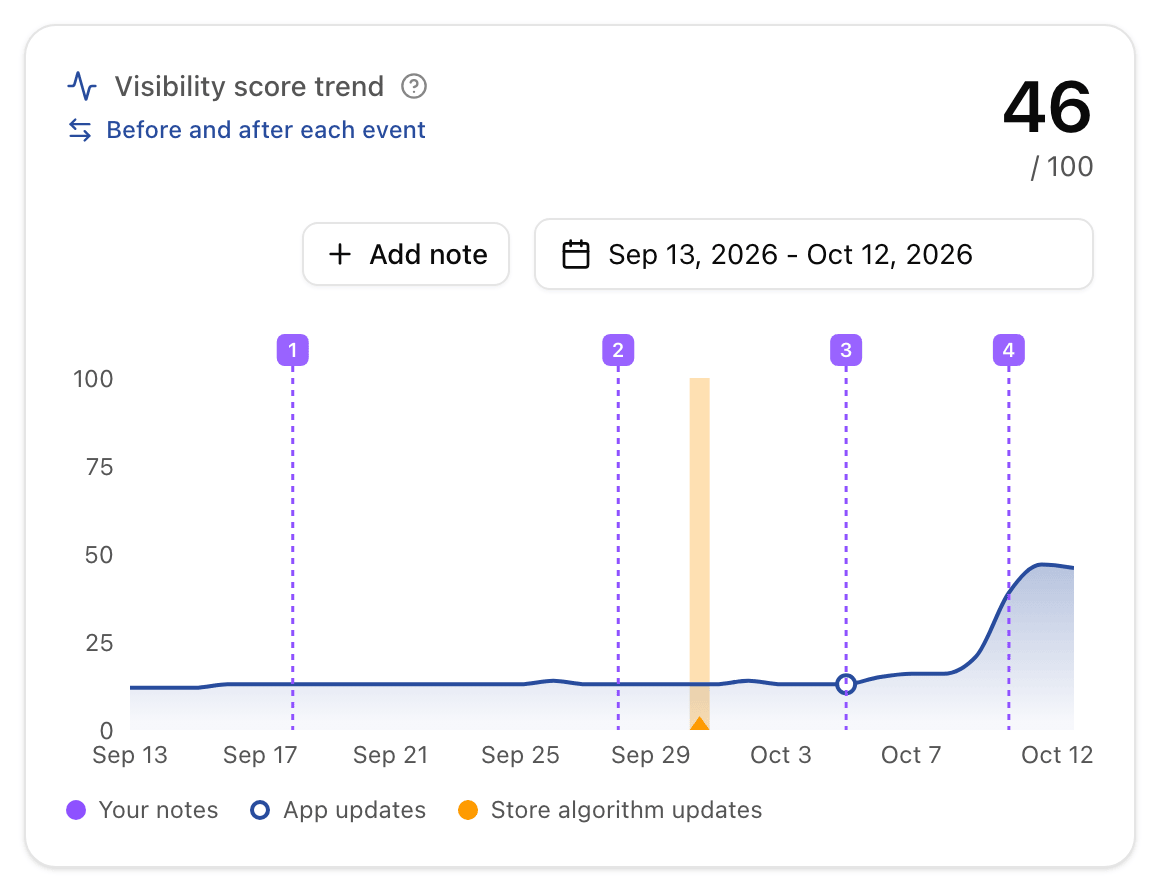
App updates need nothing from you. Applyra watches your live listing and logs every change, from a new version to a rewritten subtitle or a new set of screenshots, as covered in release history. Hover a dot for the version and the fields that moved.
Store algorithm updates come from the algorithm change detector, for your store and your country only. Hover the band to see how much more than usual the rankings moved that day, and click it to open the full analysis. When the whole store moved, your line moving with it says nothing about your listing.
Notes cover everything else, all the things that move installs without ever showing in a listing.
Add a note in two clicks
Click Add note above the visibility chart on the app page, or click the day itself on the chart. Pick the date, say what happened in up to 120 characters, and save. Any day up to today works, so last month's launch can go on the chart after the fact.
The notes worth writing are the ones Applyra cannot see for you:
- a launch on Product Hunt or Reddit, a newsletter feature, a press mention
- an Apple Search Ads or Google Ads campaign starting or stopping
- a price change, a free trial, a sale
- a new keyword field on iOS, which Apple never shows on the store page
- a review prompt you just switched on
On an app you track in several countries, a note shows on all of its markets by default. Untick Show on all markets of this app for a change that concerns one market only, like screenshots localized for the United States. Click a flag to read its notes, edit one or delete it.
Before and after each event
The Before and after each event link sits under the title of the visibility chart. It lists your notes and app updates, newest first, and sets your average visibility over the days before each one against the same number of days after. The day of the event counts on neither side, so the comparison reads the change itself.
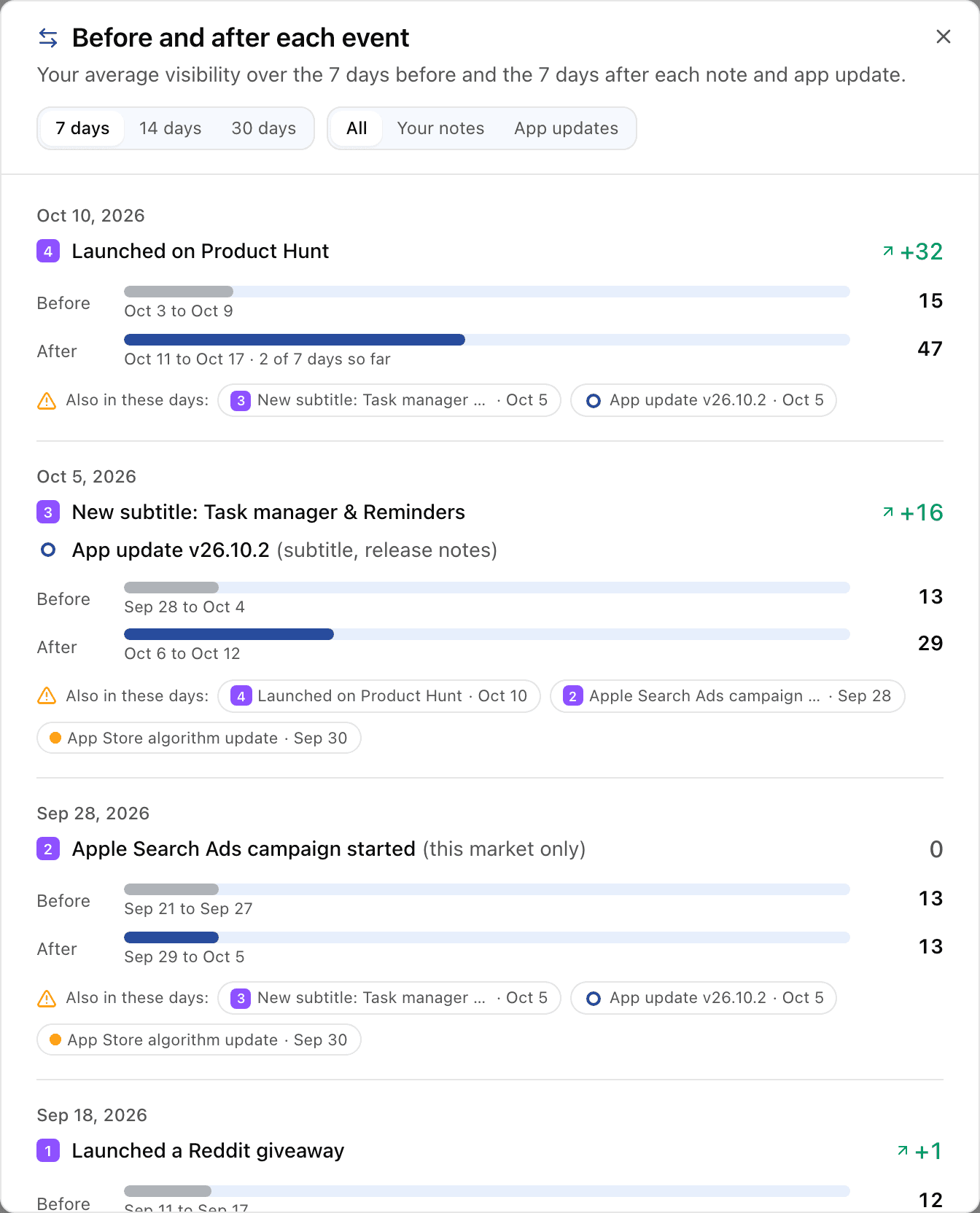
Pick the window that fits the change. 7 days suits a campaign or a feature. 14 or 30 days suit a metadata change, which takes about two weeks of daily readings to stand out from ordinary movement, as measured on real listing changes. Filter the list to Your notes or App updates when you only want one kind.
Real life rarely ships one change at a time. When another note, another update or a store algorithm update falls in the same days, Applyra lists it under the comparison, in Also in these days. A climb that followed both a subtitle rewrite and a Product Hunt launch has two candidates, and you see both before you credit either.
The same view for a single keyword
Visibility sums up your whole niche. A single keyword tells you whether the term you targeted actually moved. In the Keywords Tracker, click the 7 day trend of any row, or the chart icon among its actions, to open that keyword's rank history with every event on the line.
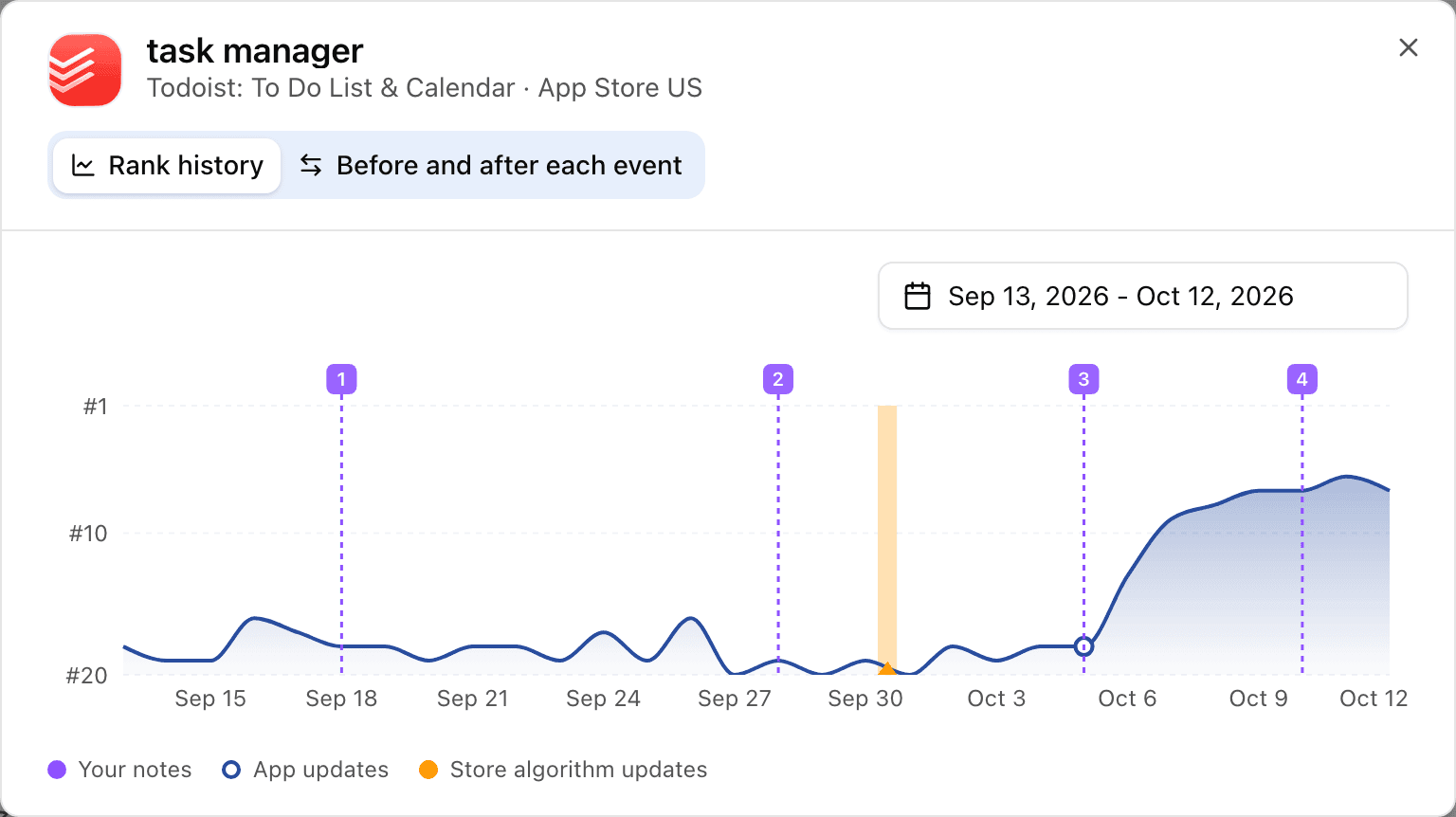
Its second tab, Before and after each event, compares the average rank before and after each note and app update. A lower rank is better, so it counts the places you gained. A day outside the top 100 counts as one just below it, so falling out of the ranking reads as the fall it is. The Keywords Inspector carries the same events on its Tracking Status chart, with the same link.
Where the events show
- The visibility chart of the app page.
- The All markets chart, where a note written for one market takes that market's colour. See tracking one app across several markets.
- The score chart you share with your competitors in the head to head comparison.
- Every keyword rank chart, in the tracker and in the inspector.
Click an item in the legend under a chart to hide that layer, and click it again to bring it back. Applyra remembers your choice on every chart.
On each plan
Notes are on every plan. The free plan keeps 7 days of history, so its comparisons use the 7 day window and count the days the plan shows. Unlimited opens the 14 and 30 day windows and compares every event of the past year. The details are on plans and limits and on the pricing page.
From the API and your AI assistant
Notes and comparisons are also in the REST API and in the MCP tools. Tell your assistant what you shipped today and it adds the note. Ask it what your last update did and it reads the comparison, along with everything else that happened that week.
Frequently asked questions
How do I know if an app update improved my rankings?
Open Before and after each event on the app page in Applyra. It sets your average visibility over the 7, 14 or 30 days before each app update against the same number of days after, and lists any other change or store algorithm update that fell in those days.
Can I annotate my App Store ranking charts?
Yes. A note in Applyra marks what you did on a day, such as a campaign, a price change or a launch. It shows as a numbered flag on your visibility and keyword rank charts, on every market of the app or on one.
What if I made two changes in the same week?
Applyra shows them together. Every comparison lists the other notes, app updates and store algorithm updates that fell in the same days, so you know when a move has more than one possible cause.
Are chart notes available on the free plan?
Yes, notes are on every plan. The free plan compares the 7 days before and after each event within its 7 days of history, and Unlimited adds the 14 and 30 day windows over a full year of events.
Last updated on