The Keywords Inspector: check a keyword before you target it
Inspect any keyword before you target it: difficulty and traffic scores, the KEI verdict, the competition breakdown and the apps ranking for it in that market.
Video transcript
Before a keyword costs you a slot, the Keywords Inspector tells you if it's worth one. Type a term, pick the store and the market, and inspect. No need to track it. Difficulty says how hard the term is to win; traffic, how much it's searched. Both out of 100. KEI weighs the demand against the competition, and gives a verdict, from Low to Excellent. A Hard term isn't ruled out. A hard term people search beats an easy one nobody types. Competition Analysis explains it. Competitor Strength: how established the apps holding the term are. Competitor Breadth: how many really target it. On demand: how visible the term is in the store's suggestions, and how big the market is. Key Observations sums it up in plain words. Below, the apps ranking today, and the words repeating most in their titles. Click one to filter. Related Keywords are what the store suggests around this term. Each opens a new inspection. If the verdict is good, track it from Tracking Status. Its first position is measured right away. Every inspection stays in your history, with today's scores. The free plan includes twenty-five a month; Unlimited has no limit.
The Applyra Keywords Inspector takes one keyword, in one store and one market, and returns what you need to decide whether to target it: a difficulty score, a traffic score, the KEI verdict, a breakdown of the competition you would face, the apps ranking for it today, and the terms the store suggests around it. It lives in the Tools group of the sidebar.
You do not have to track a keyword to inspect it, which is the point: this is the screen where you spend an inspection instead of a tracking slot.
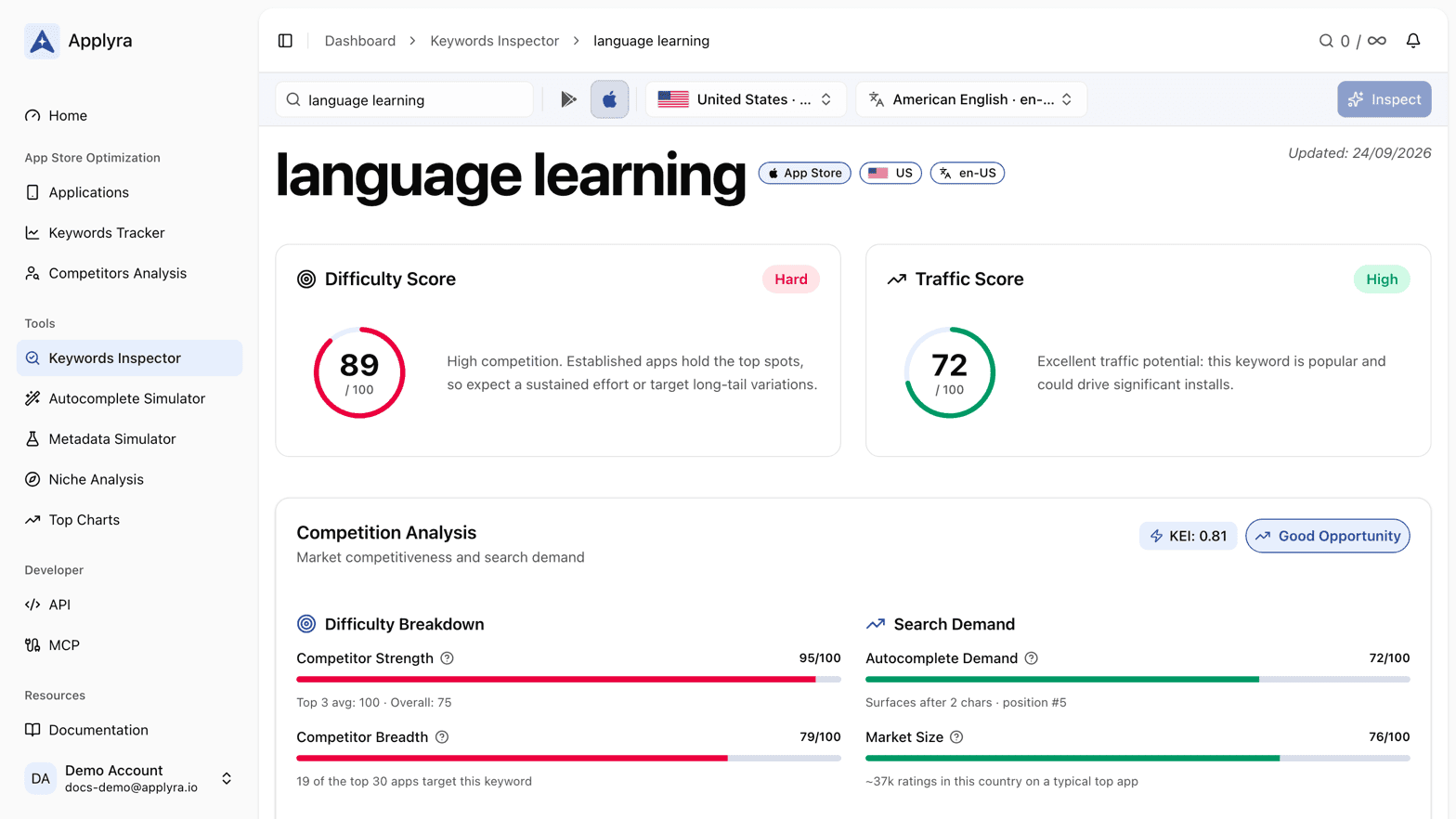
What a keyword inspection returns
- Difficulty score, 0 to 100, labelled Easy from 0 to 33, Medium from 34 to 66 and Hard from 67 to 100, with one line saying what that means for you.
- Traffic score, 0 to 100, Low below 25, Medium from 25 to 66 and High from 67 to 100.
- Competition Analysis, the heart of the page. It opens with the KEI and an opportunity badge, then splits in two. On the difficulty side, Competitor Strength tells you how established the apps holding the term are, and Competitor Breadth tells you how many of them are actively targeting it rather than picking it up by accident. On the demand side, Autocomplete Demand rates how visible the term is in the store's own suggestions, and Market Size rates how large the audience behind it is in that country. Key Observations restates all of it in plain sentences.
- Tracking Status, which tells you whether you already follow this keyword, for which apps, at which position, with its chart. If you do not, one button tracks it.
- Related Keywords, the terms the store's autocomplete returns around this one. Each is a link into a new inspection.
- The ranking itself, every app returned for the keyword, your own tracked apps flagged, and a Most Repeating Words strip listing the words that come back most often in those titles. Click a word to filter the list, or inspect it as a keyword of its own.
Reading the opportunity verdict
The opportunity badge comes from the KEI, which weighs the demand behind a term against the competition already holding it.
| KEI | Verdict | What it means |
|---|---|---|
| 1.0 and above | Excellent opportunity | High demand with manageable competition |
| 0.6 to 0.99 | Good opportunity | Demand outweighs the competition |
| 0.4 to 0.59 | Moderate opportunity | Demand and competition are balanced |
| under 0.4 | Low opportunity | Competition outweighs the demand |
A Hard difficulty is not a veto on its own. What matters is the pairing: a hard term with real demand behind it is a better use of your listing than an easy one nobody searches. The metric is covered in KEI, and the two scores it reads in traffic score and difficulty score.
What you get per plan
The free plan includes 25 inspections a month, and the badge in the page header shows where you stand. Unlimited removes the limit, so a research session runs as long as the research does. Keywords you already track stay open to you either way, so checking on a term you follow never costs you anything. See plans and limits.
Your inspection history
Everything you inspect is kept in a table under the search form, with the store, the country, the language, the traffic and difficulty scores and the date you last ran it. It is searchable, filterable by store, country and language, and sortable, so a month of research stays usable.
The scores in that table are the current ones, not a photograph of the day you ran the inspection. A term you inspected in March shows what it is worth today.
What to do next
If the verdict is good, track the keyword from the Tracking Status card and it joins the Keywords Tracker with its first position already measured. If the demand is the part you doubt, type the term into the Autocomplete Simulator and watch whether the store proposes it at all.
Frequently asked questions
Can I inspect a keyword I already track?
Yes, as often as you like. Every keyword in your Applyra tracker stays open in the Keywords Inspector, so you can re-read its competition, its scores and the apps ranking for it whenever you want.
How many keyword inspections do I get per month?
The free plan includes 25 keyword inspections a month, with the counter in the page header so you always know where you stand. The Unlimited plan removes the limit for $9.99 a month.
How fresh are the scores in the Keywords Inspector?
Applyra measures rankings once a day, straight from the store, and the date of the measurement sits at the top of the page. The scores you read are today's, never a leftover from the last time you ran that keyword.
Last updated on