How to translate App Store and Google Play keywords
Read App Store and Google Play keywords, app names and descriptions in your own language, and type keywords in it to track and search any foreign market.
Video transcript
Your app sells in markets whose language you don't read. Applyra puts your language right under theirs. Switch on Translate to, in the top bar. It starts from your browser's language. Every keyword gets its meaning underneath. The original stays on top, because it's what the store ranks. Brand names, and words already in your language, stay clean. When a keyword can mean two things, a small plus one tells you. And search finds a keyword by its meaning: type reminder, and rappel shows up. On the app page, the name and the subtitle read in English too. Descriptions and release notes translate in full. Switch to Original for the text the store serves. The same pills follow you into the Inspector, the ASO Health tab, competitor comparisons and the tools. It works the other way too. Type in your language, and Translate to writes what people in that market search for. In the Metadata Simulator, one switch reads a whole listing in your language. Read a market in your language, then build your listing from the words people there actually type. Translations are on every plan, free included.
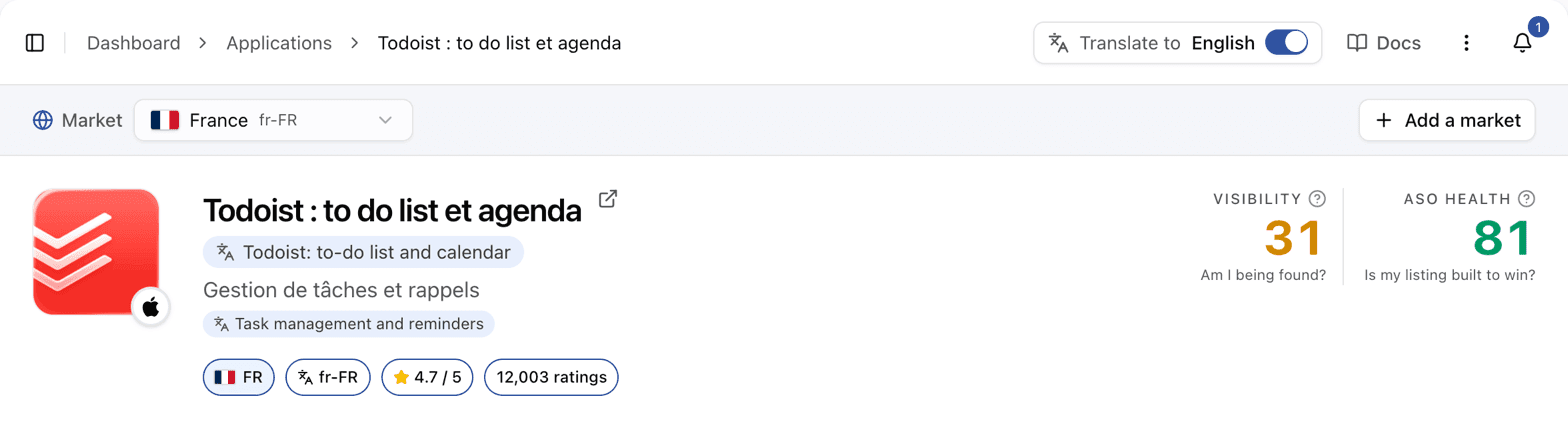
Applyra translates the store text you read into your own language. Turn on Translate to in
the top bar and every keyword, app name and subtitle written in another language gets its
translation in a small pill underneath, with the original left exactly where it was. A French
founder working on a German listing reads erinnerungen and sees rappels below it, without
leaving the page or pasting anything into a translator. It works the other way too: type a keyword
or draft a listing in your language, and Translate to writes it for that market.
Turn translations on
Translate to, with your language and a switch, sits next to Docs in the top bar of every screen. Switch it off and the pills go; your language stays chosen. The setting follows your account, so it is the same on every browser you sign in from.
What gets translated
| Where | What you see translated |
|---|---|
| Keywords Tracker, and the tracked keywords on the app page | Every keyword |
| App page | The app name, the subtitle (short description on Google Play) and Keywords to track |
| App page, ASO Health tab | Every word it quotes, scores or points at |
| App page, Store listing tab | The description and the release notes, behind an Original switch |
| Keywords Inspector | The keyword itself, every related keyword and the Most Repeating Words of the top apps |
| Competitor comparison | Both app names and subtitles, the Head-to-head and Tracked keywords tabs |
| Home | Biggest gains, Biggest drops and Keywords to watch |
| Tools | The sub-niches of Niche Analysis, the suggestions of the Autocomplete Simulator, the result and the AI writer of the Metadata Simulator, and its form behind a translate icon |
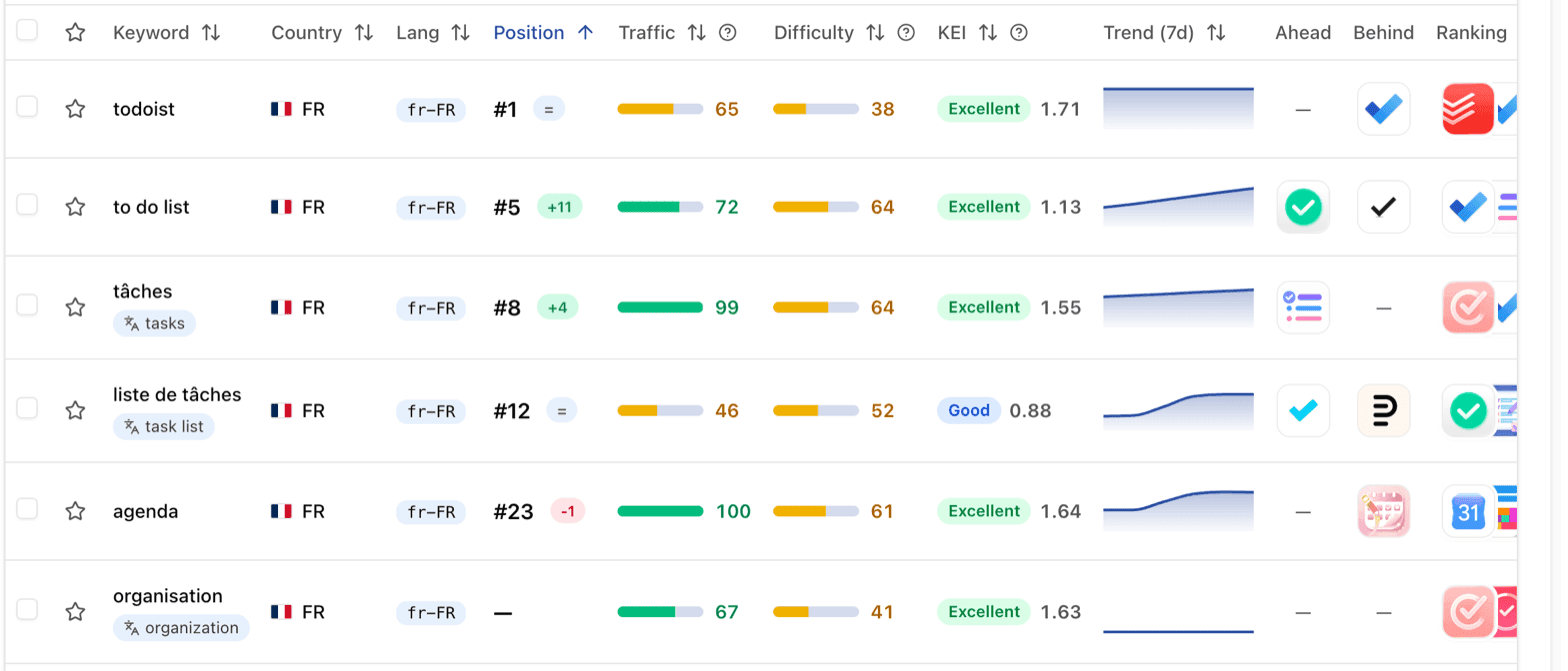
Nothing shows when there is nothing to add: a keyword already in your language, a brand name
like todoist, or a word that reads the same in both languages keeps its line to itself. A
translation follows the case of its original. The search box of the Keywords Tracker reads
translations too: type rappel and erinnerungen shows up.
Why the original stays on top
The store ranks the words in your listing and the words people type, in their language. A translation tells you what a keyword means. It is not a keyword you can rank on, so the original keeps its place and its link to the Keywords Inspector.
It also decides how to use the feature when you launch in a new market. Translate to read the market: what the top apps are called, what people search, which suggested keywords describe your app. Then build the listing from the local terms you saw searched there, not from a dictionary translation of your English list: people search their own word for the thing. Starting from your own words? The keyword fields write that word for you.
Translations are written for search intent, not word for word: ポイ活 on the Japanese store
reads point earning activities, the slang it is, and a name stays a name, so Notion stays
Notion.
A keyword with two meanings
When a keyword has a second plausible meaning in that market, its pill carries a small +1:
hover it for Can also mean and the other sense. Rechner on the German store reads
computer, and can also mean calculator. The Keywords Inspector
settles which one matters: the apps that rank on the keyword show the meaning the store serves.
Descriptions and release notes
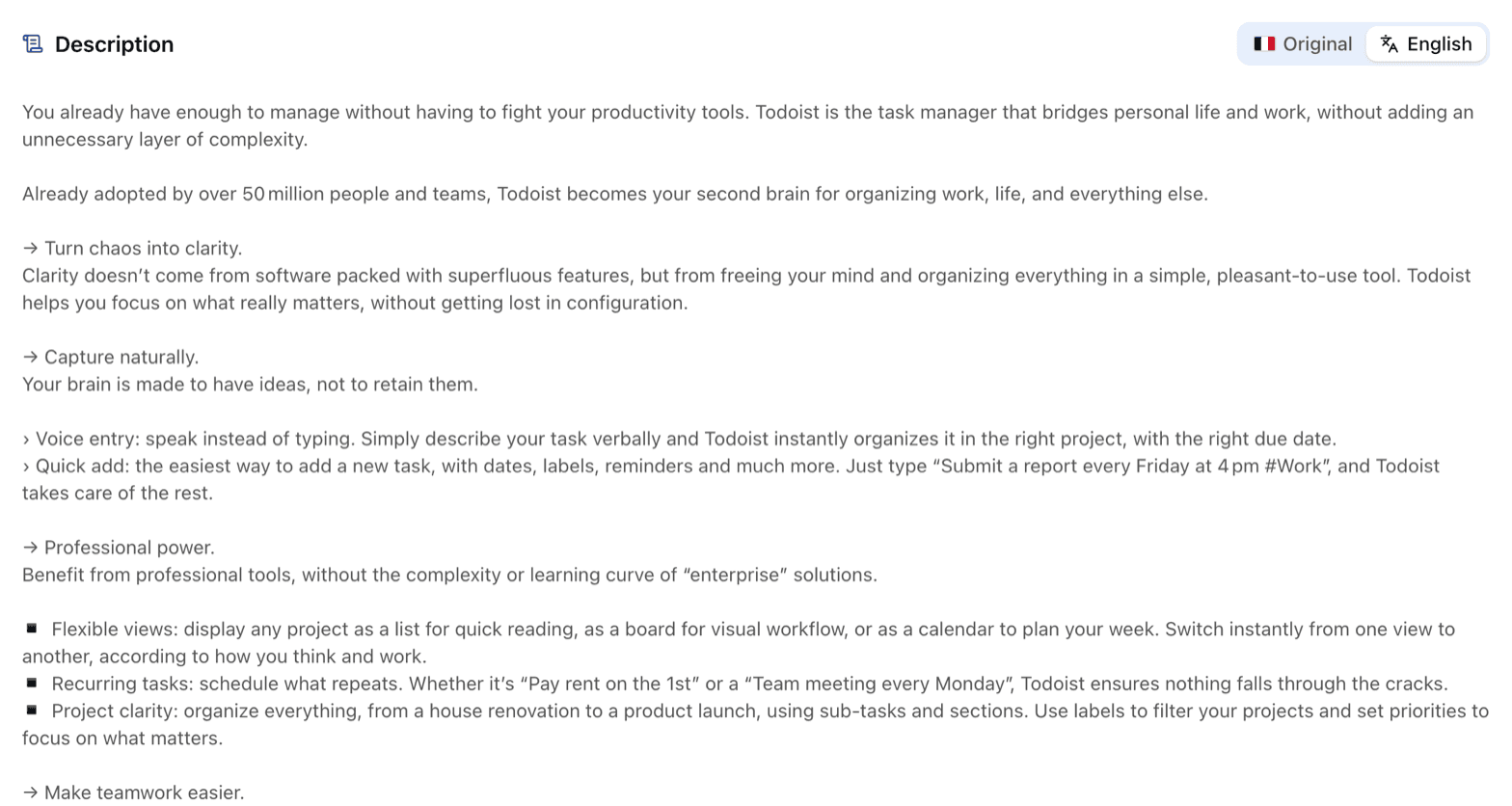
On the app page, the Store listing tab shows the description and the release notes in your language, with an Original switch for the text the store serves. Paragraphs, bullets and emoji keep their place, so the two versions line up.
Write in your own language
When the store's language is not yours, the fields where you type keywords or a listing offer to translate what you type, with a button named after the store's language: Translate to French for a listing on the French App Store.
| Where | What it translates |
|---|---|
| Track keyword rankings, the dialog that adds keywords | Every keyword of the list, up to 20 at once |
| Keywords Inspector | The keyword to inspect, and the search bar of an inspection (the icon in the field) |
| Niche Analysis | The topic |
| Autocomplete Simulator | The term on the phone, from the button next to Inspect my term |
| Metadata Simulator | Each field of your draft, from the name to the description |
Your words become the query shoppers of that market type, not the dictionary word: shared calendar becomes agenda partagé on the French App Store. The note under the field lists what
became what, Undo puts your words back, and the field stays yours to edit. In the Metadata
Simulator, a field is rewritten as a listing for that market, a name and its tagline staying a
name and its tagline, and Undo translation puts your draft back. To read a listing there
instead, click the translate icon at the top of the form: every field reads in your language.
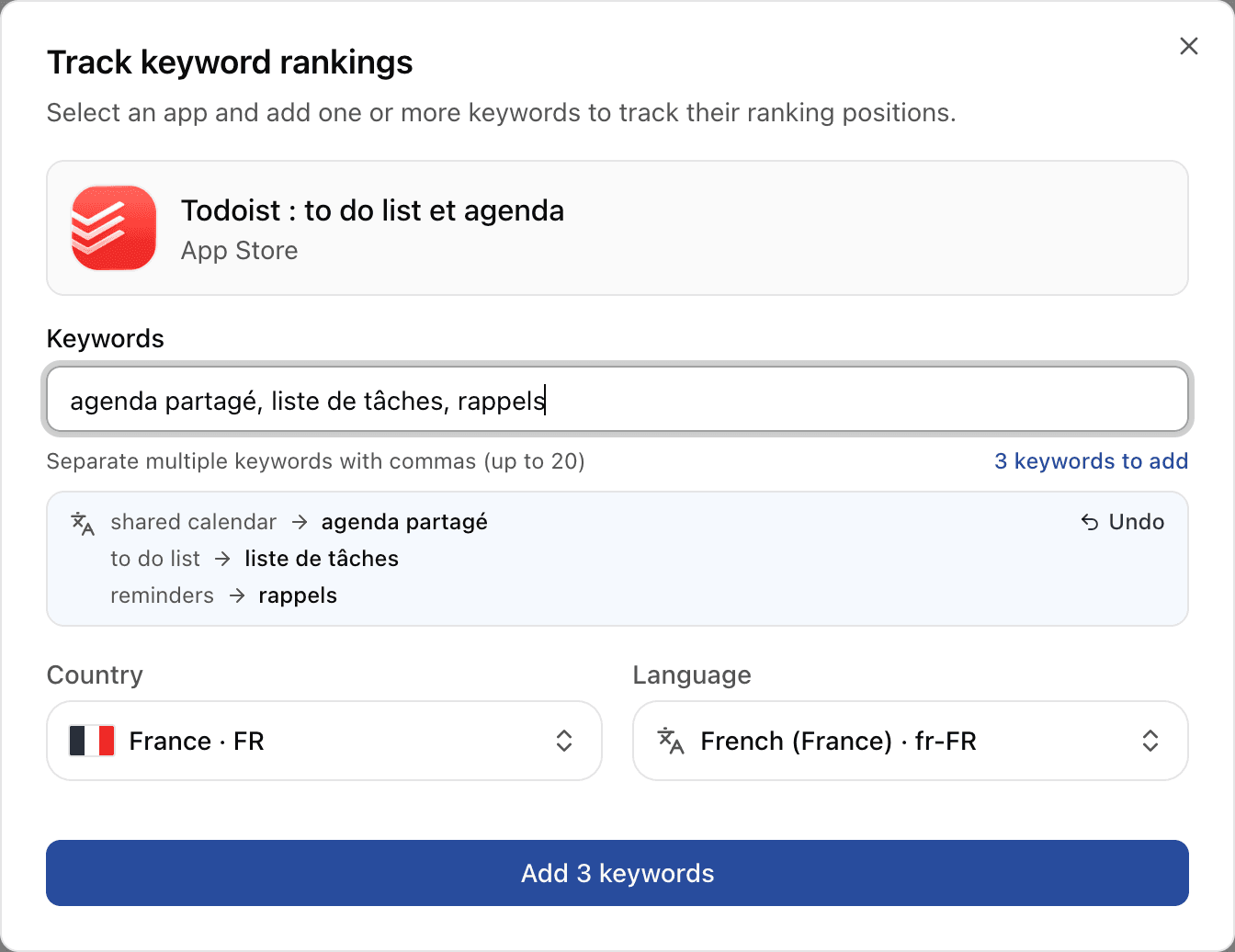
When the market also searches the same thing with another word, the note offers it after also searched as: in Track keyword rankings a click adds it to the list, so you track both, and elsewhere it replaces the first one. Open a translated keyword in the Keywords Inspector before it goes into your listing: the apps ranking on it show what the market searches it for.
Choose your language
In Account, from your name at the bottom of the sidebar, the Store translations card offers every language the two stores are published in under Translate into, Simplified and Traditional Chinese apart. Applyra starts from your browser's language. Show translations is the top bar's switch. Set both, then Save changes.

Store translations are on every plan, free included. Your store defaults, on the same screen, pick the market a new app or keyword is added in; translations change how you read and write its words.
Frequently asked questions
Can Applyra translate keywords from a foreign App Store market?
Yes. Turn on Translate to in the top bar and every keyword, app name and subtitle written in another language shows its translation in a pill underneath, across the Keywords Tracker, the app page, the Keywords Inspector, competitor comparisons and the tools.
Should I use translated keywords in my store listing?
Not the dictionary translation. The store ranks the words people actually type in their own language, so pick a market's keywords from the terms you see searched there. When you start from your own words, Translate to in the keyword fields writes the query people type in that market, and the Keywords Inspector shows whether it deserves a place in your listing.
Can I type keywords in my own language to track a foreign market?
Yes. When the store's language is not yours, a Translate to button in Track keyword rankings, the Keywords Inspector, Niche Analysis and the Autocomplete Simulator turns what you type into the query shoppers of that market type. In the Metadata Simulator it writes each field of your draft listing in the store's language. The result stays editable.
Which languages can Applyra translate store text into?
Any language the App Store or Google Play is published in, with Simplified and Traditional Chinese as separate choices. You pick yours once in Account, and Applyra starts from your browser's language.
Are translations available on the free plan?
Yes. Store translations are on every plan, free included, for keywords, app names, subtitles, descriptions and release notes.
Last updated on