Metadata Simulator: score a listing before you ship it
Write a draft title, subtitle, keywords field and description, and get an ASO Health score out of 100 from the same engine that audits your live listing.
Video transcript
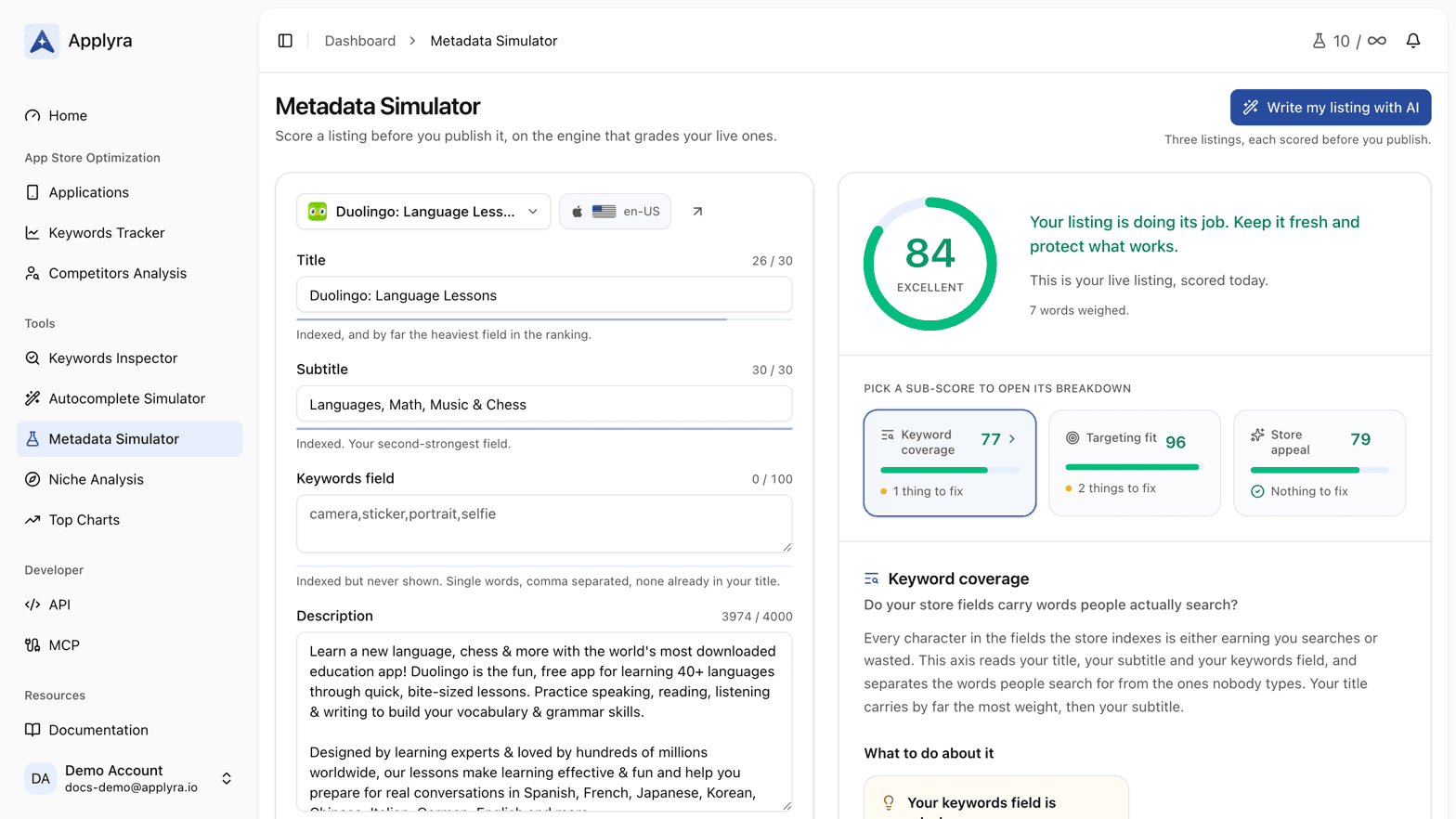
The Metadata Simulator scores a draft listing out of 100 before you ship it, on the same engine that audits your live one. Open it on one of your apps and it loads the live listing. Or start from a blank one. Each field shows the store's own limit, and text the store would refuse, like an emoji in an Apple field, blocks the run. Below sits the app behind the listing: rating, screenshots, age. The same words are judged against the app that carries them. Change what you want to test, and score it. You get ASO Health out of 100, its band, and how far you moved from your live listing. One card per axis, with its score, what's left to fix, and its own movement. Click one to open it. First, what to do about it: each finding names the problem, the words involved, and the fix. Red comes first. Then the detail, word by word: Earning, or Already used when an earlier field already carries it. Targeting fit grades each term for your app's stage. Store appeal reads the page after the click, and no wording moves it. Short of ideas? The AI writer proposes three listings, scores them the same way, and keeps only those that beat your draft. Every run is saved, to compare drafts days apart. The free plan includes ten a month; unlimited runs and the AI writer come with Unlimited.
The Metadata Simulator scores a draft listing out of 100 before you send it to App Store Connect or the Play Console. You write the title, the subtitle, the keywords field and the description, press "Score this listing", and you get an ASO Health score with its three axes and the gap against your live listing. It runs on the same engine that audits your tracked apps every day, so a number produced here and a number on your app page cannot disagree.
It lives in the Tools group of the sidebar, as Metadata Simulator. The "Simulate changes" button on an app page opens it on that app's current listing.
The fields, per store
The form shows the fields that store actually has, with that store's own limits.
| App Store | Google Play |
|---|---|
| App name, 30 characters, indexed | App name, 30 characters, indexed |
| Subtitle, 30 characters, indexed | Short description, 80 characters, indexed |
| Keywords field, 100 characters, indexed and hidden | No equivalent |
| Description, 4000 characters, not indexed | Full description, 4000 characters, indexed |
That last row is the difference that decides how you write. Apple does not index your description, Google does. More on that in metadata fields, and the full limit table is in the free character counter.
A field the store itself would reject blocks the run before it costs anything: text over the limit, a line break in a single-line field, an emoji anywhere in an Apple field. There is no point scoring a listing that cannot ship.
What you also have to tell it: rating, screenshots, app age
Below the text there is a panel for everything the audit normally reads from your app page: store rating, number of ratings, screenshot count, when the listing last changed, app age, preview video and number of published languages. Those are what put the score in context, so the same words are judged against the app that carries them rather than against an absolute bar. When you open the tool on a tracked app the panel is filled from the live listing, so you only touch it if you are simulating a future you: the rating you will have after a fix-it release, the screenshot set you have not shot yet.
Reading the result
The right-hand side of the screen is the same breakdown your app page shows in its ASO Health tab, and it reads the same way in both places. It comes in four layers: the score, the three axis cards, the findings for the axis you picked, and the detail behind them.
The score and its movement
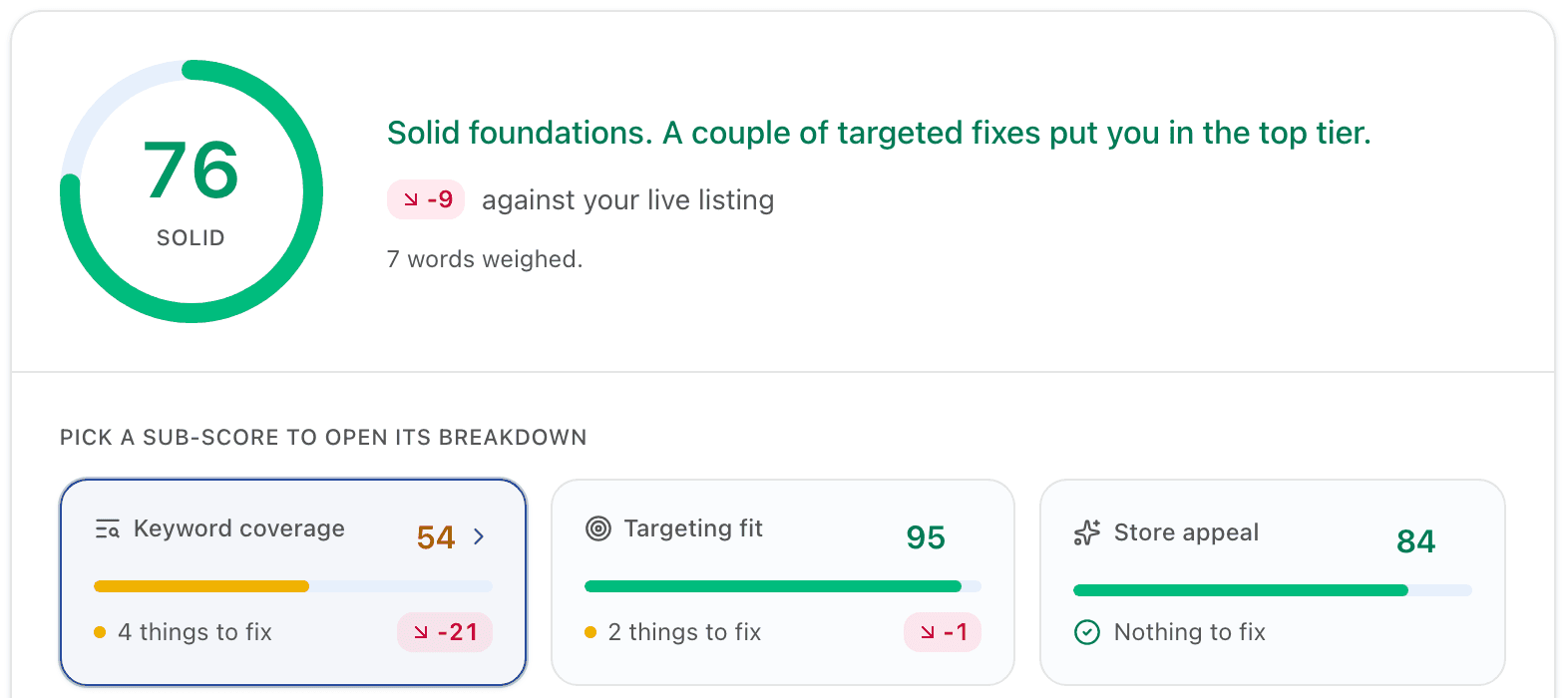
- The gauge is ASO Health out of 100, with its band underneath (Excellent, Solid, Needs work or Critical) and one line on what that band means. The bands are in ASO Health.
- The chip under it compares your draft with your live listing when the run starts from one of your apps: green for points gained, red for points lost. Score your listing without touching it and the line reads "This is your live listing, scored today". Change words that make no difference and it says so.
- Words weighed counts the words the run measured. A word nobody had measured yet on that storefront is looked up on the store during the run, which is why a first run takes a few seconds and the next one on the same wording is instant.
The three axis cards
One card per axis: Keyword coverage, Targeting fit and Store appeal. Each shows its score and its bar, how many things there are to fix (with a red dot when one of them has to come first, an amber dot otherwise) or "Nothing to fix", and its own movement against your live listing. Click a card to open its breakdown underneath. Keyword coverage opens first. An axis reads "n/a" when it could not be measured, which ASO Health explains.
What to do about it
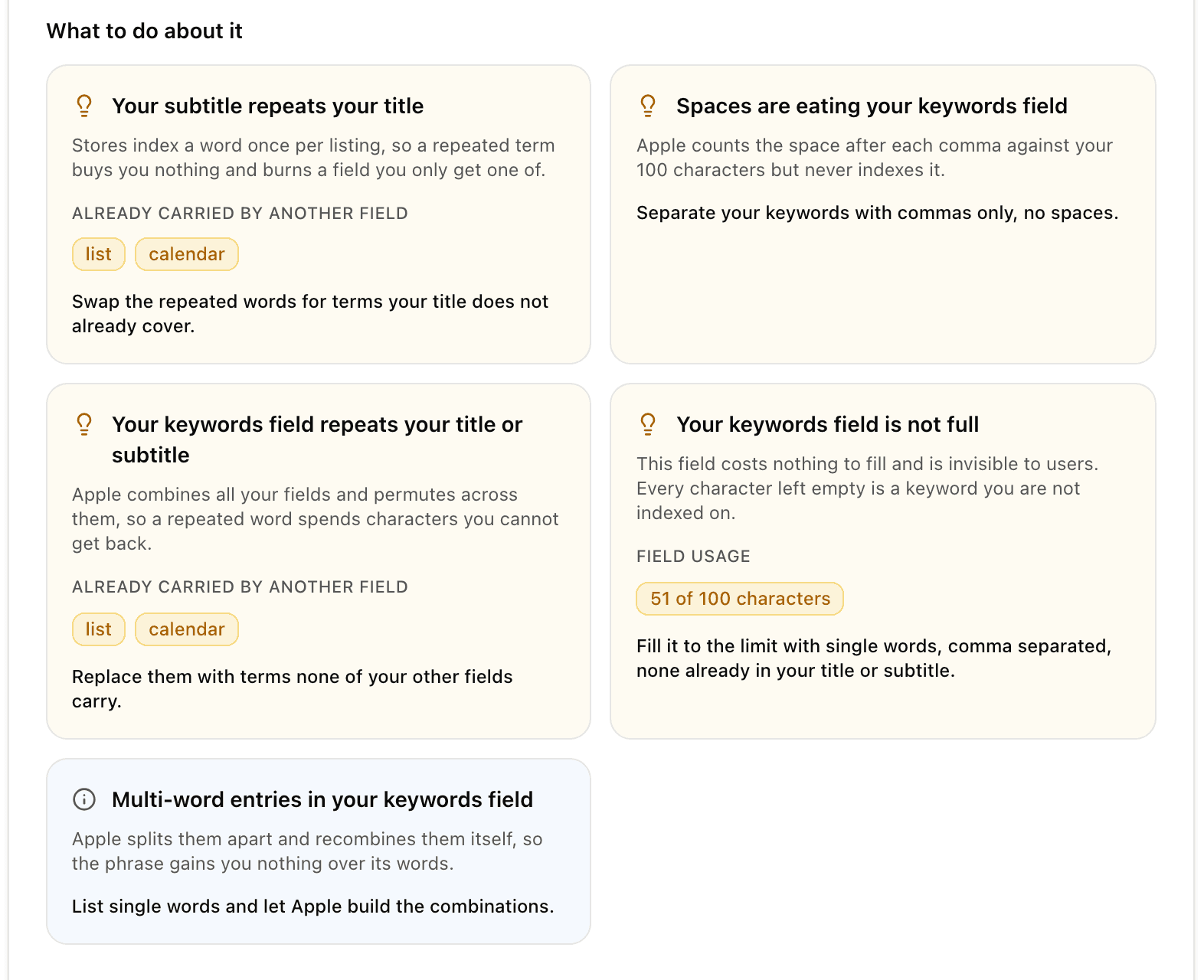
Under the axis name and the question it answers come the findings for that axis, the most severe first. Each card names the problem, says in one line what it costs you, shows the words or figures it is about (grouped by field when they sit in several), and ends on the fix, in bold. The icon carries the severity, and hovering it shows the label:
| Icon | Label | What it means |
|---|---|---|
| Red triangle | Fix this first | It is holding the score back. Start here. |
| Amber bulb | Worth doing next | A real gain once the urgent ones are done. |
| Grey info mark | Good to know | Worth knowing, and not counted among the things to fix. |
Findings cover things like a subtitle that repeats the title, spaces or multi-word entries wasting the keywords field, a title with no searched term, a title aiming above your weight class, a rating that costs you installs or screenshot slots left empty. An axis that passes every check says so, and there is nothing to act on.
Keyword coverage: what each word is worth
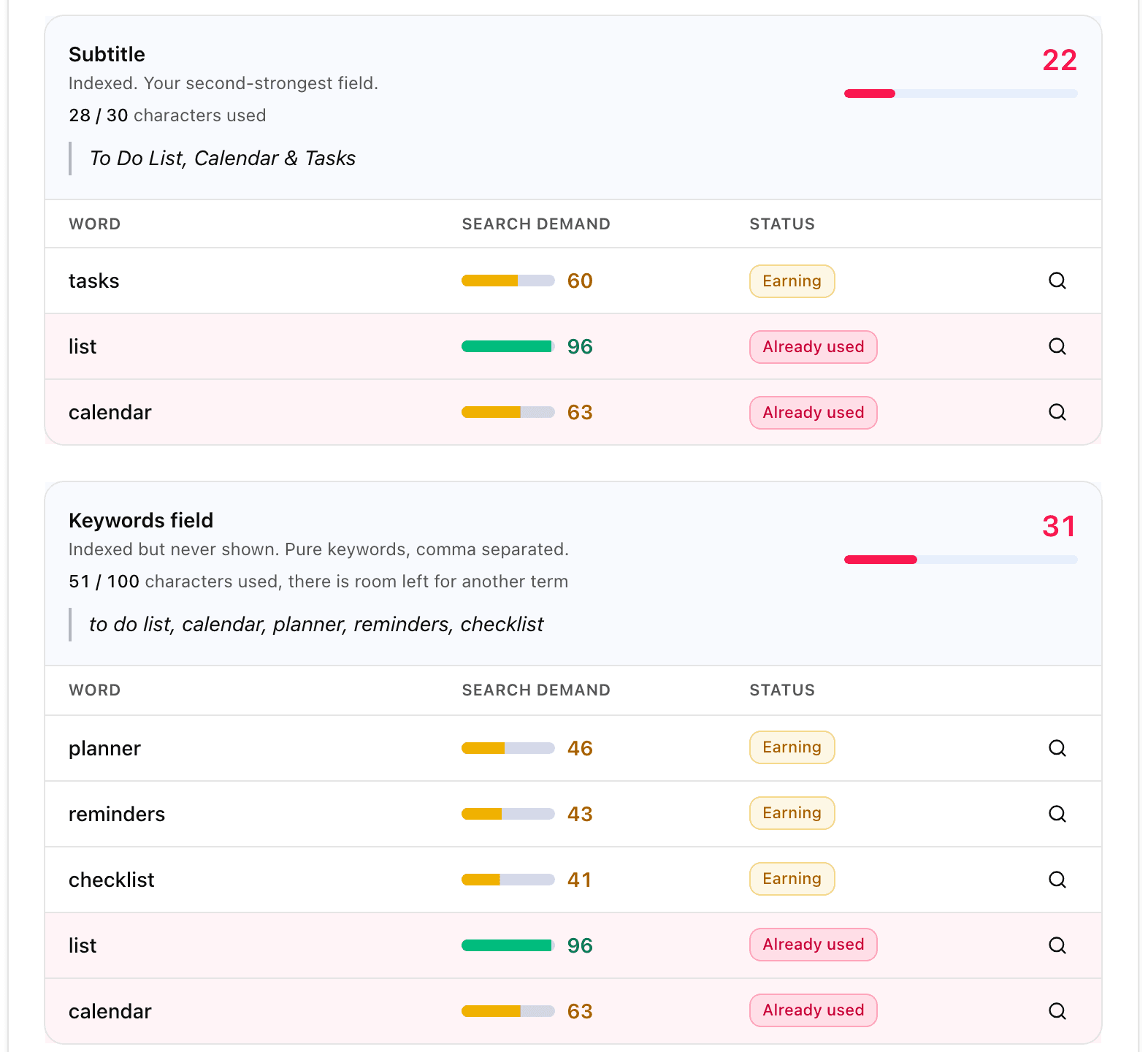
"The detail behind the score" gives every indexed field its own card: the field's name and what it weighs in the ranking, the characters used out of its limit (with a nudge when there is room left for another term), your text quoted, and the field's own score on the right. An empty field says so, and filling it is usually the fastest win on the page.
Under it, one row per word, with its Search demand (the traffic score, 0 to 100) and a Status:
| Status | What it means |
|---|---|
| Earning | People search this word, and this field is the one credited for it. |
| Already used | An earlier field already carries it. Stores index a word once per listing, so these characters earn nothing. |
| Not searched | Indexed, but nobody types it on this storefront. |
| Measuring | There is no search data for this word on this storefront yet. |
| Covered | Google Play long description: a term your title or short description targets, repeated here as it should be. |
| Missing | Google Play long description: a targeted term that never appears here, so Google drops the ranking it was holding. |
| Indexed | Google Play long description: a searched word no other field carries. |
A row tinted red earns nothing: the word is already used, missing or not searched. On a word that works, the badge colour follows its demand instead, green when it is high, amber when it is moderate, red when it is thin. Grey means there is no data yet, which is not the same as bad.
On Google Play the long description table adds an Appears column, how many times the word shows up in it, and splits in two: the words your title and short description target, then the extra keywords only this field carries. Every row ends with a magnifier that opens the word in the Keywords Inspector, on the same store and market.
Targeting fit: which terms you can win
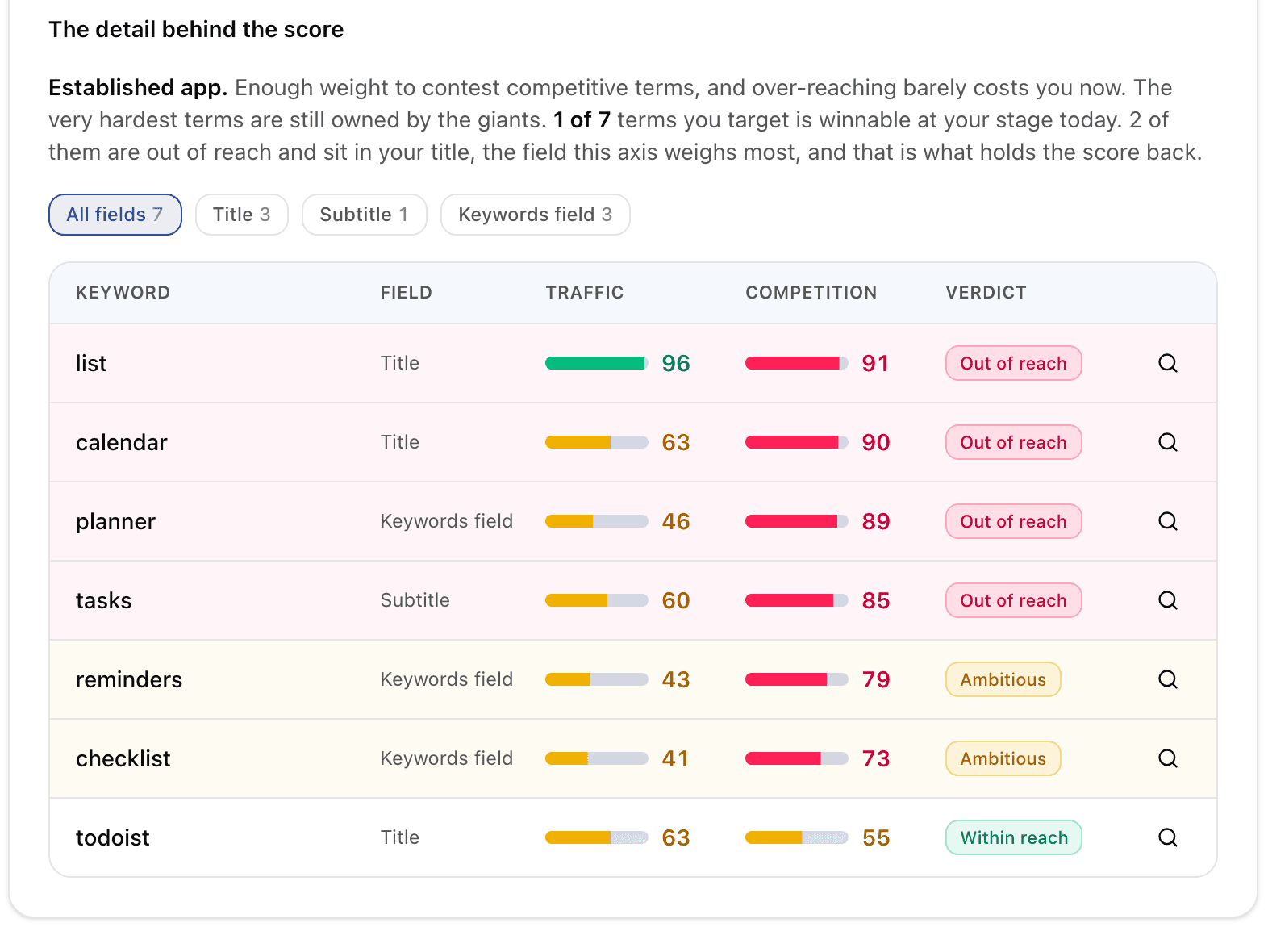
The breakdown opens on one sentence that sets the premise: your app's stage (Emerging, Growing or Established, and what that stage can contest), how many of the terms you target are winnable today, and whether the ones out of reach sit in your title, where they hold the score back, or in a weaker field, where they cost far less.
Chips filter the table by field. Each row gives the keyword, the field it sits in, its Traffic, its Competition (the difficulty score) and a Verdict:
| Verdict | What it means |
|---|---|
| Within reach | Competition you can realistically beat at your stage. |
| Ambitious | A stretch. Worth keeping if the rest of your listing is solid. |
| Out of reach | Owned by much bigger apps. It spends your best space for nothing. |
Only terms people search are graded. Words in your listing that nobody searches are listed apart, in grey: they cost space rather than aim, and Keyword coverage is where they count. That is also why a listing can score well with a few terms out of reach: a stretch outside the title costs little, and what an app can contest grows with it, as ASO Health explains.
Store appeal: the page after the click
Three tiles: Rating (out of 5, or Not rated), Screenshots (how many of your slots are filled) and Freshness (how long since the listing last changed), each with a bar and one line on why it matters. Here they come from the panel you filled under the text, so you can test the rating you expect after a fix-it release, or a screenshot set you have not shot yet. No wording moves this axis, which is why it caps what a rewrite can reach: see the ceiling a rewrite can reach.
Nothing is scored as you type. The button is the contract, because a run measures every word in your draft against real results in that market.
Saved runs
Every scored run is saved. The history table lists the listing, the market, the ASO Health score and the three axes, and the date. Click a row and the tool reopens on that exact text, so two drafts can be compared side by side days apart. Re-running an identical draft updates its row instead of adding a line.
Every column sorts, so the best draft of the lot is one click away. The app filter narrows the table to one app on one market and one store, or to the listings you wrote from scratch. Runs on an app you have since removed from your account stay in the table and in the filter.
The AI listing writer
"Write my listing with AI" gives you three complete listings, and the three are deliberately different from each other rather than three shades of the same sentence. The model writes, Applyra scores: every candidate goes through the same audit as your live listing, and only the ones that beat your draft make it to the screen. On iOS the keywords field is filled with what the title and subtitle left over. On Google Play the long description is written too, because there it is indexed.
Each proposal names the searched words it adds that your draft did not have. Apply one and it drops straight into the form, where you can edit it before scoring again. When none of them beats your draft, the writer says so and shows your score next to the ceiling of any text, the most any wording could reach on this listing: if the two are close, the remaining points are in your rating and your screenshots.
The writer is part of the Unlimited plan. On a free account the button is there and opens the offer.
Limits
| Free | Unlimited | |
|---|---|---|
| Metadata simulations per month | 10 | Unlimited |
| AI listing writer | Not included | Included |
Prices and the full grid are on pricing, and what each plan includes is in plans and limits.
If you want to drive it from your own code, POST /api/v1/metadata/simulate runs the same
engine and POST /api/v1/metadata/check validates a draft against the limits without touching
a store. Both are in the API endpoints, and the matching MCP tools are
in MCP tools.
Frequently asked questions
What does the Applyra Metadata Simulator do?
It scores a draft App Store or Google Play listing out of 100 before you submit it, using the same audit engine that scores your live listing. You get a global ASO Health score, its three axes, and the difference against your current listing.
Can I score a listing for an app I do not track yet?
Yes. Choose a blank listing instead of one of your apps, pick the store, country and language, and type the text. You also set the rating, screenshot count and app age yourself, because a listing is only ever as strong as the app carrying it.
Does the simulator tell me if the store will reject my text?
Yes, and it refuses to score text the store would refuse to store. A field over its limit, a line break in a single-line field, or an emoji in any Apple metadata field blocks the run and is flagged in red under the field.
What does Already used mean in the Metadata Simulator?
It means an earlier field of your listing already carries that word. The stores index a word once per listing, so repeating it in the subtitle or the keywords field spends characters that earn nothing. Swap it for a searched word none of your other fields carry.
How many metadata simulations do I get?
Ten a month on the free plan, unlimited on the $9.99 Unlimited plan. Every scored run is saved, so you can reopen it and compare drafts later.
Last updated on