Adding an app to track on the App Store or Google Play
Add any App Store or Google Play app to Applyra by searching it, or by pasting its store URL, bundle ID or package name. No store account needed.
Video transcript
Any app on the App Store or Google Play can be tracked, yours or a competitor's. Applyra reads public store data, so there's nothing to connect. From Applications, click Add application. Three steps: the store, the market, then the app. Pick the store first. It decides what the next step accepts, because the two stores identify apps differently. Then the market: a country and a language. They decide which storefront Applyra reads, and a listing can differ from one country to the next. Now search your app by name. When the name is a common one, type it exactly. Search only looks in the country you picked. If your app doesn't show up, switch to Direct ID/URL, and paste its store link, its app ID, or its bundle ID. Check the review card: title, developer, rating and market. If something looks off, the market is usually why. Then add it. Applyra records the full listing as your baseline, computes a first visibility and ASO Health score, and looks for your competitors. That baseline is what every later change is measured against, from day one. Add an app you already track, and it's refused rather than duplicated. To remove one, the menu on its page holds Delete application. Its keywords and competitors go with it.
You add an app from the Applications screen, with the Add application button. Pick a store, pick the market, then either search the app by name or paste its store URL, and save. Nothing has to be connected and nothing has to be yours: Applyra reads public store data, so your app and your competitor's app are added the same way.
The three steps: store, market, app
The dialog walks through Select store, Search app, Review & save.
- Choose a store. App Store (iOS, iPadOS, visionOS) or Google Play (Android and ChromeOS). The choice changes what the next step accepts, because the two stores identify apps differently.
- Choose the market, then find the app. A country and a language picker sit above the search box. They are not cosmetic: they decide which storefront Applyra reads, and a listing can differ from one country to the next. See markets for what a market actually is.
- Review & save. The card shows the title, the developer, the store rating, the review count and the market you picked. If any of that looks wrong, the market is usually the reason.
Search needs at least two characters, so type the exact app name when the name is generic.
What you can paste
Searching a name fails on apps that share it with twenty others. Switch to Direct ID/URL and paste an identifier instead.
| Store | Accepted |
|---|---|
| App Store | Store URL, numeric app ID (123456789), or bundle ID (com.company.app) |
| Google Play | Store URL, or package name (com.company.app) |
Anything else is refused before a request is sent, with the reason. If a valid identifier returns nothing, the app is usually not sold in the country you selected, which app not found covers.
What happens when you save
Saving does more than store a row. Applyra fetches the complete current listing for that market and writes it down as your baseline, computes a first visibility score and a first ASO Health score, and looks for the apps you compete with. The import takes a moment for that reason, so leave the dialog open while it runs.
The baseline matters later. Every change you or a competitor ships is measured against the listing recorded at that moment, which is what makes release history trustworthy from day one instead of from next month.
The country and language you picked also become your defaults for that store, so the next app you add starts where the last one did.
Markets and plan limits
One tracked app is one app in one market. Adding the same app in a second country is a second tracked app, and it counts as such. Free accounts follow one app, which is enough to learn the tool on the app that pays your bills, and the paid plan lifts the count. The current numbers live on plans and limits and on pricing.
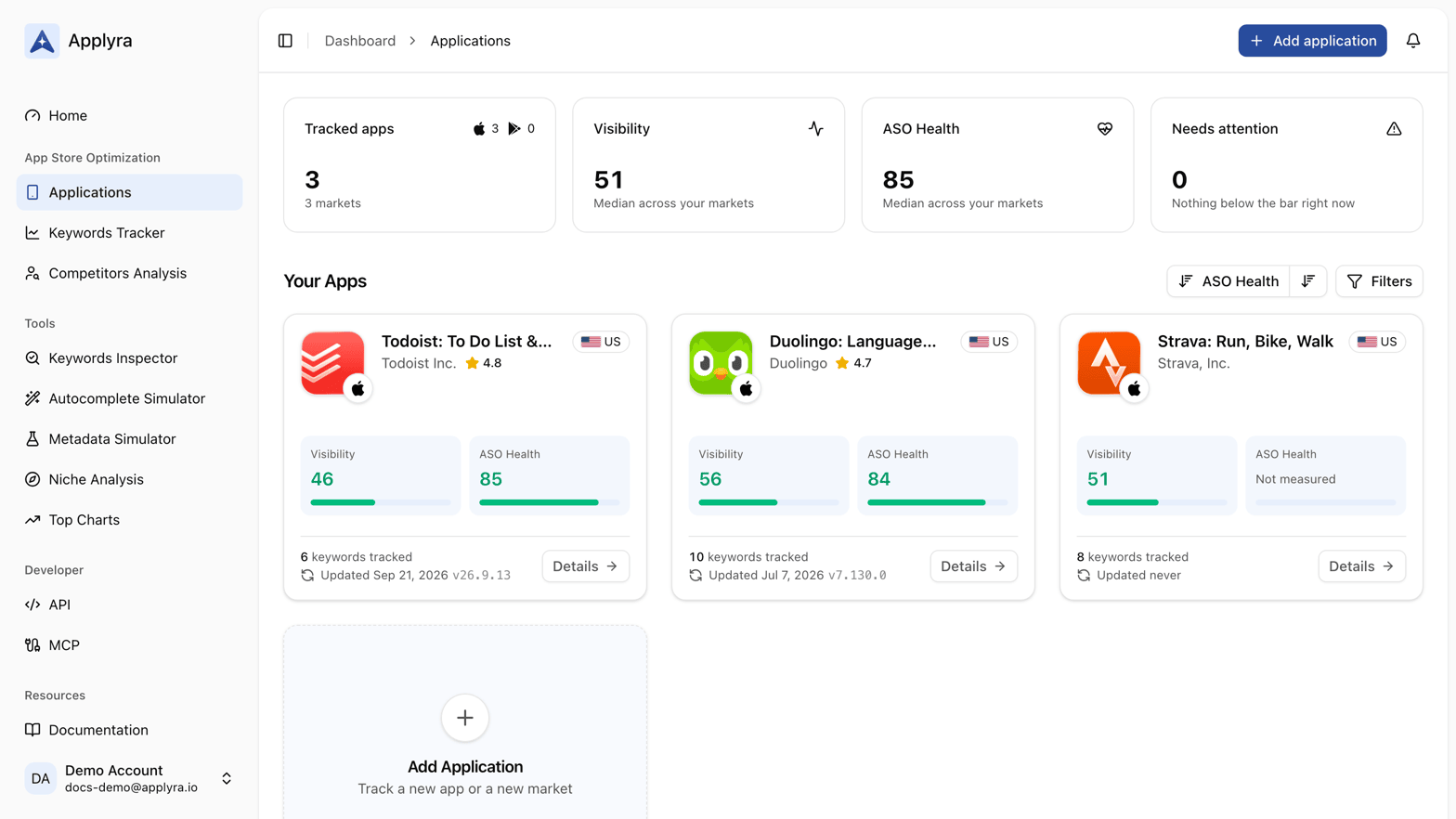
Adding an app you already track is refused rather than duplicated, so re-adding by mistake costs nothing.
Removing an app
The menu at the top right of an app page holds Delete application. It removes the app from your dashboard together with the keywords and the competitors you tracked for it, and it cannot be undone.
Next: choose the keywords to track, or read the app page tab by tab to know what each screen is telling you.
Frequently asked questions
Can I track an app I do not own?
Yes. Applyra reads public store data, so any app on the App Store or Google Play can be added and followed exactly like your own. Ownership only matters for one optional feature, the hidden iOS keywords field.
What can I paste to add an app?
On the App Store, an App Store URL, the numeric app ID, or the bundle ID. On Google Play, a Play Store URL or the package name. You can also skip all of that and search the app by name inside the dialog.
How many apps can I track on the free plan?
One, and nothing is held back on it: daily keyword positions, both scores, a tracked competitor and release alerts all run on the free plan. Each additional market of the same app counts as another app, so a second country needs the paid plan at $9.99 a month.
What happens when I delete an app from Applyra?
The app leaves your dashboard along with the keywords and the competitors you were tracking for it. That cannot be undone, so re-adding it starts a fresh history.
Last updated on