A tour of the Applyra dashboard
What lives where in Applyra: the tracking screens, the tools, developer access and resources, and which one answers the question you actually came with.
Video transcript
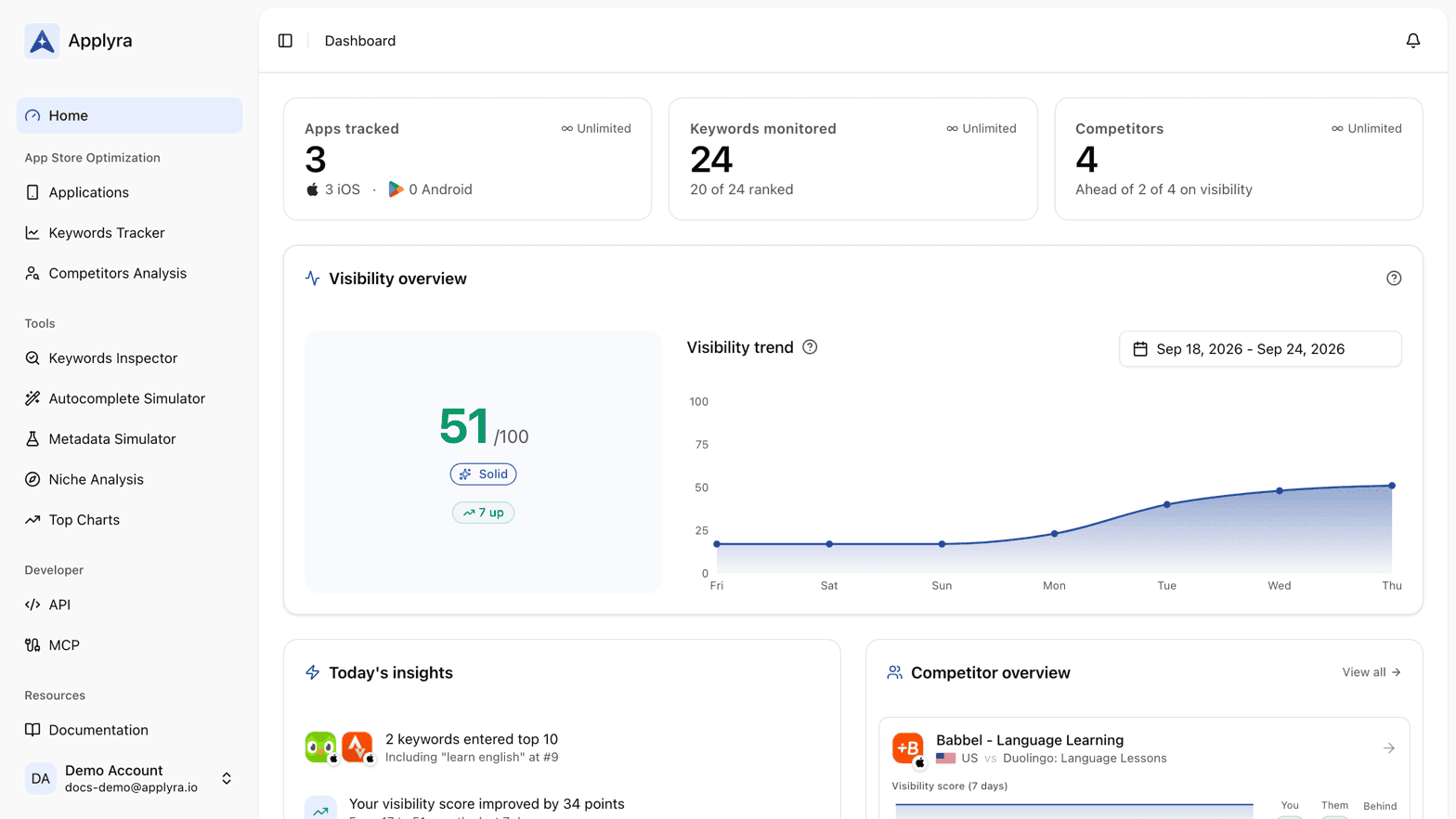
A quick tour of Applyra. The sidebar has four groups, each answering a different question. Home opens on what changed since the last collection. A glance, and you know if anything needs you. App Store Optimization holds the screens you open every week. Applications: how each app stands, and which one needs attention. Keywords Tracker: which keywords moved, and which deserve more effort. Competitors Analysis: who's ahead of you, on what, and what they just shipped. Tools are for decisions. Inspect a keyword before you target it, see what the store suggests as people type, score a listing before you ship it, size up a niche, or see who wins a category today. Developer holds your API keys and the MCP server, to read your data from your own tools or an AI assistant. Resources: this documentation, and the changelog, where you can suggest a feature straight to the person who builds Applyra. Your account, your subscription and referrals live in the menu at the bottom.
The Applyra sidebar has four groups, and every screen belongs to exactly one. App Store Optimization holds the tracking screens you open weekly, Tools the ones you open to make a decision, Developer the API and the MCP server, and Resources the documentation and the changelog. Home sits above them, your account sits at the bottom, and the whole thing is organised by the question you are asking rather than by the data behind it.
App Store Optimization
The tracking core, the screens you open weekly.
| Screen | The question it answers |
|---|---|
| Applications | How do my apps stand, and which one needs attention |
| Keywords Tracker | Which of my keywords moved, and which are worth more effort |
| Competitors Analysis | Who is ahead of me, on what, and what did they just ship |
Home opens on what changed since the last collection, so you can read it in fifteen seconds and close it. Each app then has its own page, described tab by tab in the app page, and what to make of the numbers on it is reading your first results.
Tools
The screens you open when you have a decision to make rather than a number to check.
| Screen | Use it when |
|---|---|
| Keywords Inspector | You want to know who holds a keyword before targeting it |
| Autocomplete Simulator | You want the store's own view of what people type |
| Metadata Simulator | You are about to rewrite a listing and want it scored first |
| Niche Analysis | You are sizing up a topic or a new app idea |
| Top Charts | You want to see who is winning a category today |
Developer
API keys and the MCP server, for reading your data from your own tools or from an AI assistant. Start at the API or the MCP server.
Resources
This documentation and the changelog, which lists everything shipped since launch. Inside the app the changelog carries a suggestion button, and it goes straight to the person who builds Applyra.
Your account
Plan, billing, profile, default market and email preferences live in the account menu at the bottom of the sidebar. See account and billing.
Frequently asked questions
What are the main sections of the Applyra dashboard?
Four groups in the sidebar. App Store Optimization holds Applications, the Keywords Tracker and Competitors Analysis. Tools holds the Keywords Inspector, the Autocomplete Simulator, the Metadata Simulator, Niche Analysis and Top Charts. Developer holds the API and MCP screens, and Resources holds the documentation and the changelog.
Where do I see my keyword rankings in Applyra?
In the Keywords Tracker, in the App Store Optimization group of the sidebar. It lists every keyword you follow with its position, its movement and its scores, and every row carries a seven day sparkline of the positions behind it.
Where do I find my Applyra API key?
On the API screen, in the Developer group of the sidebar. The MCP screen next to it holds the configuration block for connecting an AI assistant, with your key already filled in.
Where does Applyra show what changed since yesterday?
On the Home screen, which sits above the four groups and opens on what moved since the last collection. It is built to be read in fifteen seconds, so the detail stays on the tracker and the app pages.
Last updated on