The Keywords Tracker, column by column
Every column of the Applyra Keywords Tracker explained: position and daily change, traffic, difficulty, KEI, the 7 day trend and the apps ranked around you.
Video transcript
The Keywords Tracker holds everything you follow: one row per keyword, per app, per market. Each row opens on today's position, with a badge for the move since yesterday. A dash means outside the top 100 today: a measurement, not a gap. Out marks a keyword you just lost. Traffic is demand, difficulty is competition, both out of 100. KEI weighs one against the other. The trend draws seven days. Hover it for the day and the position. Further right: the apps just ahead of you and just behind, and the top five. Above, three cards: keywords tracked and ranked, your average position, and your share of the top 10. Search as you type, keep your favourites with the star, or filter by store, app, country and language. Every header sorts, and a page shows up to a hundred rows. Click a keyword to inspect it. The bin stops tracking it. Tick several rows to delete them at once. Add a term back later, and its history comes back with it. On Unlimited, export sends every filtered row, across all pages, to a CSV.
The Keywords Tracker is Applyra's table of everything you follow: one row per keyword, per app, per market, carrying today's position, the change since the last measurement, the traffic and difficulty scores, the KEI verdict and a seven day trend. It sits in the App Store Optimization group of the sidebar, which the dashboard tour maps in full.
Positions are measured once a day, down to position 100. When your app sits outside that top 100, the keyword reads as not ranked, which is a measurement rather than a blank.
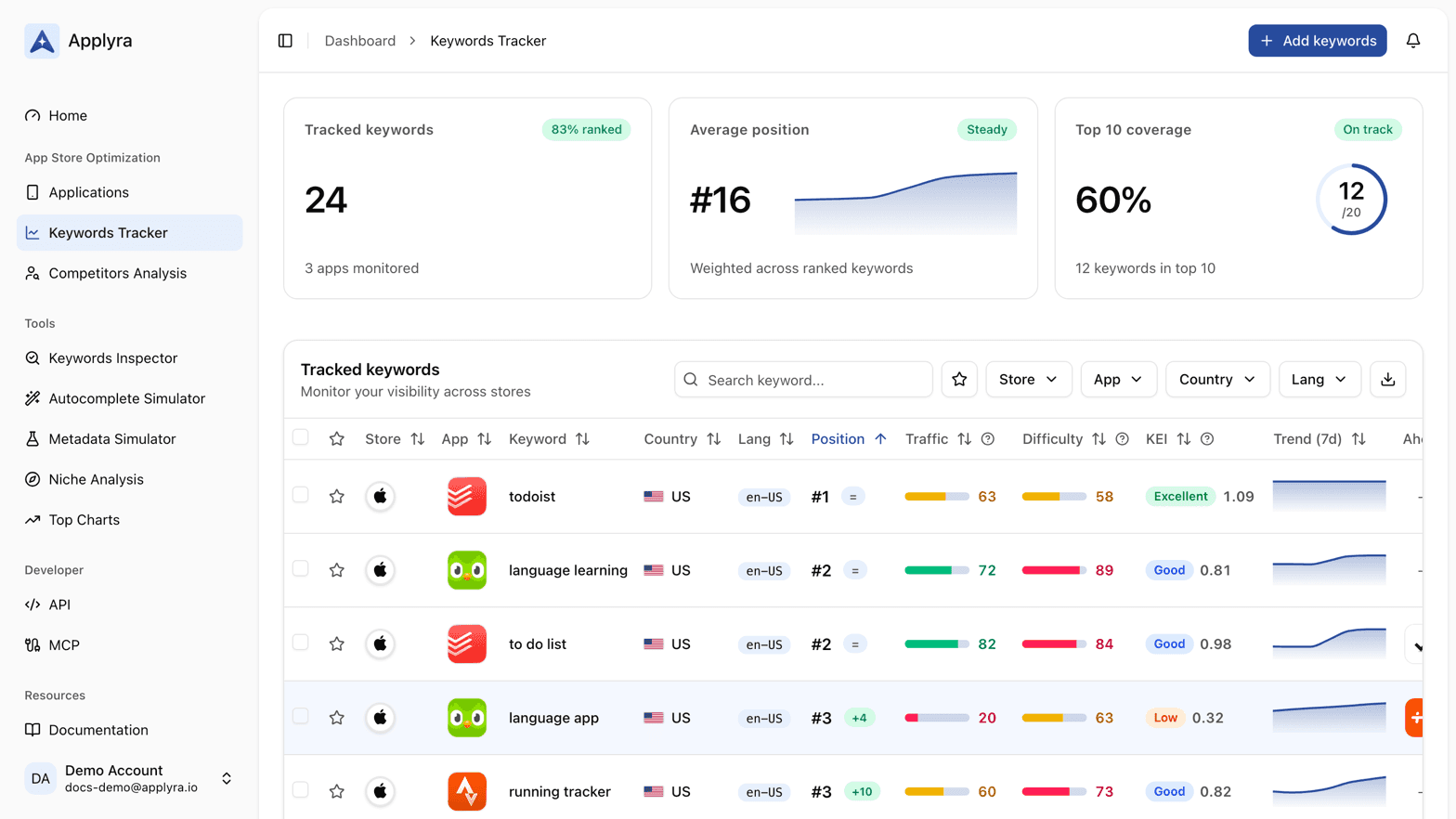
What each column holds
| Column | What it holds |
|---|---|
| Star | Favourite. Favourites sort to the top by default, and the star in the toolbar filters to them alone |
| Store | App Store or Google Play |
| App | The app the row belongs to |
| Keyword | The term itself. Clicking it opens the Keywords Inspector on that exact keyword and market |
| Country, Lang | The storefront and the language the position was measured in |
| Position | Today's rank, with a badge for the change since the previous measurement, and an Out badge when the app has dropped out of the results |
| Traffic | Search demand for the term, 0 to 100: Low below 25, Medium from 25 to 66, High from 67 |
| Difficulty | How hard the term is to win, 0 to 100: Easy up to 33, Medium from 34 to 66, Hard from 67 |
| KEI | Traffic weighed against difficulty, as a tier and as the number behind it: Excellent from 1.0, Good from 0.6, Moderate from 0.4, Low below that |
| Trend (7d) | The last seven days as a sparkline, one point per day |
| Ahead, Behind | The apps ranked immediately above and immediately below yours on that keyword |
| Ranking | The five apps at the top of the results, each one showing its rank, category and rating |
| Actions | Inspect the keyword, or stop tracking it |
The three scores are explained in full in traffic score, difficulty score and KEI.
The three cards above the table
- Tracked keywords, with the share of them that currently rank as a badge, and how many slots are left when your plan has a cap.
- Average position, the mean rank across the keywords that rank, drawn over the same seven days.
- Top 10 coverage, the share of your ranked keywords sitting in the top 10, and how many that is.
Finding one row among hundreds
There is no per keyword pricing here, so accounts track hundreds of them and the table is built for that. The search box filters as you type. The star button switches to favourites only. Four more filters narrow by store, app, country and language, and every sortable header sorts, with the default being favourites first, then the best position first.
Sorting or filtering takes you back to the first page. Merely refreshing the data does not: toggle a favourite or delete a row and the table stays where it was.
Pagination, selection and export
Rows per page can be 10, 25, 50 or 100, and the choice is remembered in your browser for the next visit.
Tick the checkboxes to select rows, then delete them in one go. Removing a keyword stops its daily measurements and frees the slot. Adding it back later restarts the same row rather than creating a new one, so nothing you measured is lost.
The export button writes a CSV of every row your filters currently leave, across all pages: favourite, keyword, country, language, app, store, current rank, previous rank, change, traffic, difficulty, KEI, the seven day trend, the apps ahead and behind, and the top five. CSV export is part of the Unlimited plan, see plans and limits. If you would rather the sheet refreshed itself, the same rows come out of the API: what to build on the API and MCP has the pattern.
Where to go from a row
Two actions live at the end of every row. The magnifier opens the Keywords Inspector on that keyword and market, which is where the competition breakdown and the related terms are. The bin stops tracking.
If a row shows no position and you expected one, read keyword not ranked before anything else. If it shows a position you cannot reproduce by searching the store yourself, Applyra shows a different number from the store has the three usual causes. If you want more than the seven days the sparkline draws, the longer chart is covered in rank history.
Frequently asked questions
How many keywords can I track on Applyra?
The free plan tracks 5 keywords and the Unlimited plan tracks as many as you need for $9.99 a month. A keyword counts once per app and per market, so the same term followed for two apps uses two slots.
What does a dash in the position column mean?
A dash means the app is outside the top 100 for that keyword today. That is a measured result, not missing data, and an Out badge appears next to it when the app was still ranked at the previous measurement.
Can I export my tracked keywords to CSV?
Yes, on the Unlimited plan. The export button writes every row your filters currently leave, across all pages, with the keyword, the country and language, the current and previous rank, the traffic and difficulty scores, the KEI and the seven day trend.
Last updated on