The Applyra MCP server: ASO data in Claude or Cursor
Install the Applyra MCP server in Claude, Cursor, Codex or VS Code with one config block, and let the assistant read your apps, keywords, positions and rivals.
Video transcript
Asking an assistant about your ASO used to mean pasting a screenshot of a table, and hoping it read the numbers right. The Applyra MCP server removes that step: your assistant queries your account itself. It works with Claude, Cursor, Codex, Windsurf and VS Code. The MCP page has the config for your client, with your key already in it, and the file it goes in. Paste it into that file, then restart the client. Claude Code and Codex take a single command instead. Then ask, in plain words. The assistant picks the tools and fetches the answer: your positions, from your account, not from its memory. One thing isn't exposed, on purpose: the AI writer. Your assistant already writes. What it needs is Applyra's engine, to score the draft. Its first draft lost two points: it repeated a word from your title. You get a number, not an opinion. Nothing it does reaches the stores. The write tools only change what Applyra tracks. You need the Unlimited plan, your API key, and Node 20 or later.
The Applyra MCP server connects an AI assistant straight to your ASO data. Install it in
Claude, Cursor, Codex, Windsurf or VS Code, paste your API key, and the assistant can read the
App Store and Google Play apps you track, their keywords and positions, their scores and their
competitors, and track new ones. It is published on npm as @applyra/mcp-server, MIT licensed, with its source public
and a manifest in the MCP registry.
Asking an assistant about your ASO used to mean pasting a screenshot of a table and hoping it read the numbers right. This removes that step: the assistant queries your account itself, and the same rules as the API apply to what it asks for.
Install it
Most clients use the same configuration shape. Paste this into your client's MCP config, with your own key:
{
  "mcpServers": {
    "applyra": {
      "command": "npx",
      "args": ["-y", "@applyra/mcp-server"],
      "env": { "APPLYRA_API_KEY": "YOUR_API_KEY" }
    }
  }
}
Two clients have a one line command instead:
claude mcp add applyra -e APPLYRA_API_KEY=YOUR_API_KEY -- npx -y @applyra/mcp-server
codex mcp add applyra --env APPLYRA_API_KEY=YOUR_API_KEY -- npx -y @applyra/mcp-server
The MCP page in the dashboard shows the same blocks with your key already filled in, plus the exact config file path for Claude Desktop, Cursor and VS Code.
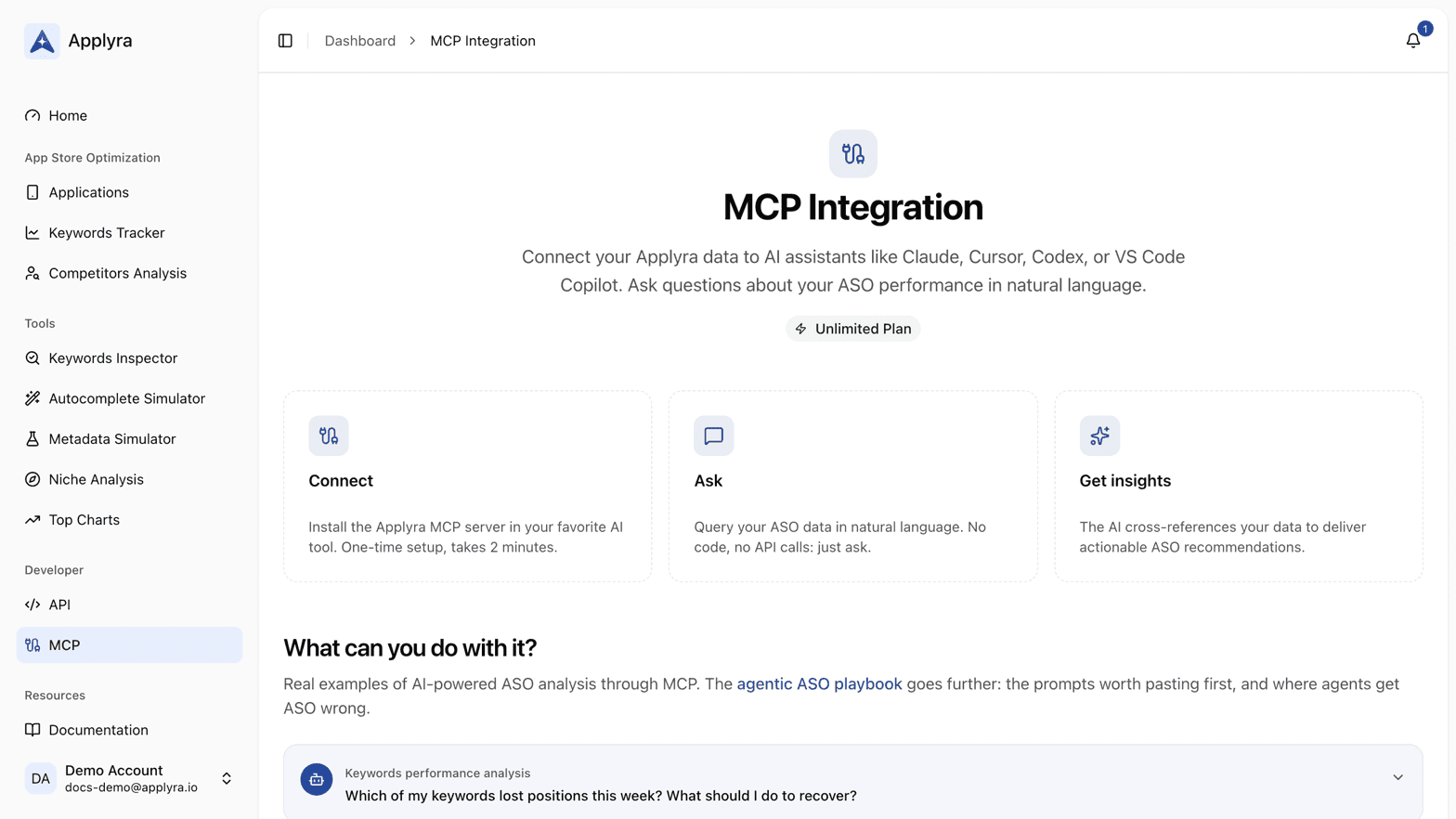
Which clients it works with
Any client that speaks the Model Context Protocol. Today that means Claude Desktop, Claude Code, Cursor, Codex, Windsurf and VS Code with GitHub Copilot, and the list grows on its own: nothing in the server is specific to one of them, so a new MCP client works with the same configuration block above.
What the assistant can do with it
Twenty-five tools, covering the same ground as the API: list and add applications, list, track and untrack keywords, read rank history, inspect a keyword, read ASO Health and score history, check and simulate metadata, list, add and remove competitors, run autocomplete and niche analyses, read top charts and your account usage. They are described one by one in the MCP tools.
The prompts worth starting with are in the recipes, including the one that has an assistant draft a listing and then have Applyra score it.
What it does not do
The AI writer is deliberately not exposed. If you are already talking to a model, you do not
need Applyra's model to draft your listing: you need Applyra's engine to score the draft, which
simulate_metadata does. That engine is the same one behind
the Metadata Simulator.
Nothing the assistant does reaches the stores either. The write tools change what your Applyra account tracks, never your published App Store or Google Play listing.
Requirements
A paid plan, an API key, and Node 20 or later on the machine running the client. The key is the
one from the API, and the server consumes your API quota like any
other client, so usage shows up in GET /api/v1/account/usage and in the API section of the
dashboard. The free plan has no API access, so the server has nothing to authenticate with: see
what each plan includes.
Frequently asked questions
What is the Applyra MCP server?
It is an open source Model Context Protocol server published as @applyra/mcp-server. Point an MCP capable client at it with your API key and the assistant can read your tracked apps, keywords, positions, scores and competitors, and track new ones.
Which AI assistants work with the Applyra MCP server?
Any client that speaks the Model Context Protocol, which today includes Claude Desktop, Claude Code, Cursor, Codex, Windsurf and VS Code with GitHub Copilot. They all take the same configuration block, and two of them install it with a single command.
What do I need to run the Applyra MCP server?
An Applyra account on the paid plan, an API key from the API section of the dashboard, and Node 20 or later on the machine running the client. There is nothing to host: the server runs locally through npx.
Is the Applyra MCP server safe to use?
It is MIT licensed and its source is public, it runs locally on your machine, and it acts only on your own account through your own API key. Nothing is sent anywhere your API key does not already reach.
Last updated on