How to add keywords to track in Applyra
How to add keywords to Applyra, up to 20 at a time with the country and language you choose, and the five places inside the product that hand you candidates.
Video transcript
To follow a keyword, add it from the Keywords Tracker, up to twenty at a time. First pick the app. From an app page, this step is skipped. Then type your terms, separated by commas. The counter shows what goes in: duplicates are dropped. The country and language start on the app's own market. Change them to follow a term in another country. Add them. The first positions are measured live, so leave the dialog open. Each term comes back with its position, or a dash outside the top 100. Both are worth knowing. One slot is one keyword, for one app, in one market. The free plan holds five; Unlimited has no cap. You don't have to invent the list. Five places hand you terms with scores attached: Keywords to track, the Autocomplete Simulator, the Keywords Inspector, your competitors, and Niche Analysis. A term earns its slot with real demand, a difficulty you can win, and a KEI of Good or better: demand weighed against competition. Inspect before you track: it costs no slot. And skip head terms the giants hold. They'd sit outside the top 100 for months. To remove keywords, select them and delete. The slot is freed right away.
You add keywords from the Add keywords button at the top of the Keywords Tracker, or from the Tracked keywords tab of an app. Type them as one comma separated list, up to 20 at a time, confirm the country and the language, and Applyra measures the first position immediately.
The dialog has two steps. Pick the app, then enter the keywords. Starting from an app page skips the first step, since the app is already known.
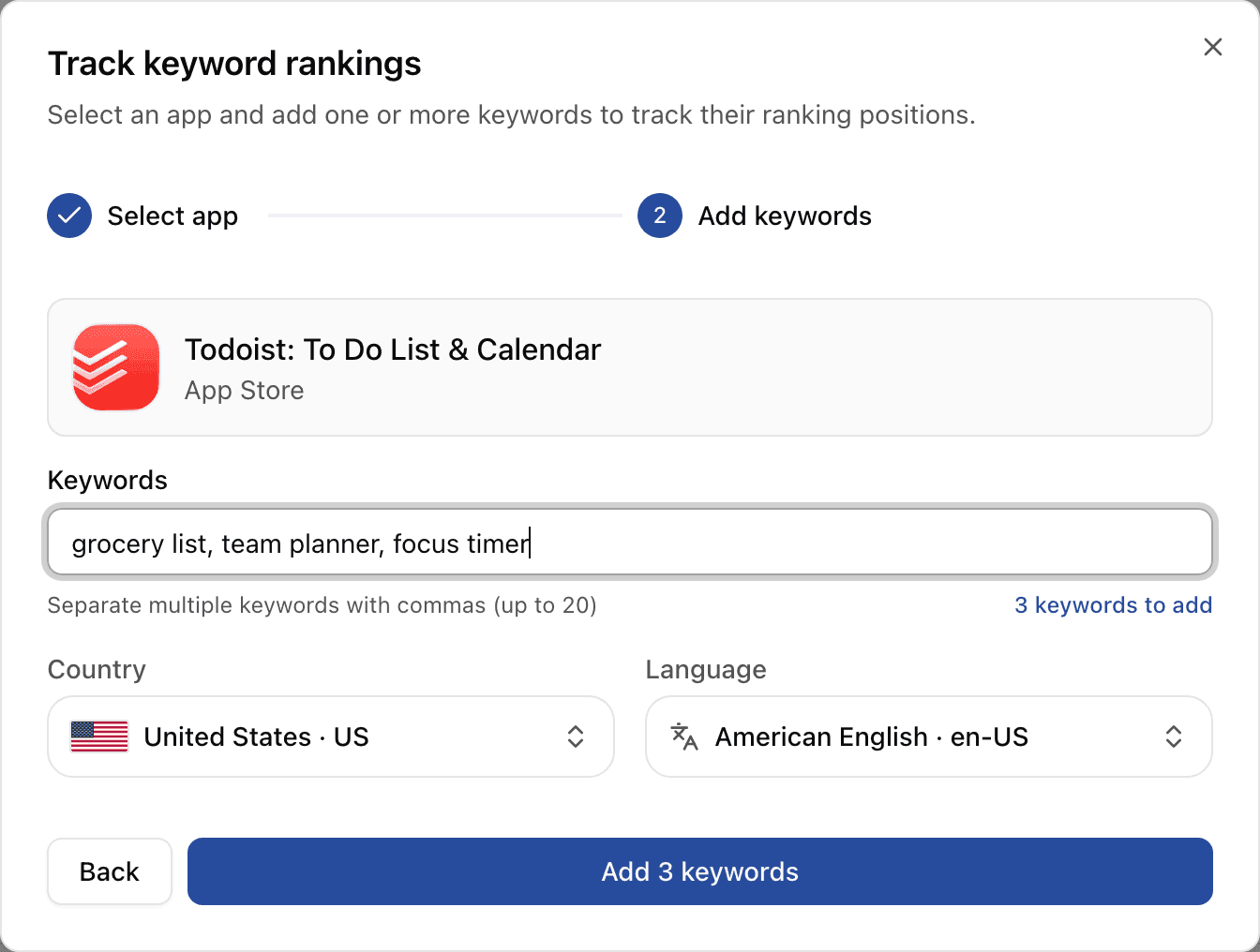
What the form accepts
- Commas separate the terms, and the counter under the field tells you how many will be added. Duplicates in your list are removed, and anything shorter than two characters is ignored.
- Country and language default to the app's own market and can be changed for this batch. That is how you follow one term across several storefronts, see markets and locales.
- The first measurement is taken live, so a large batch takes a moment to come back. Leave the dialog open until it finishes.
- Each keyword comes back with its first position, or a dash when the app is outside the top 100 today. Neither is a failure: a term you do not rank for today is exactly the kind you want to watch.
What counts as one keyword
One slot is one keyword, for one app, in one market. The same term followed for two apps is two slots, and the same term in two countries is two rows. The free plan carries 5 of them and the Unlimited plan is uncapped, see plans and limits.
A hundred keywords is a loop rather than an afternoon of clicking if you drive it from the API instead: what to build on the API and MCP has that pattern and three others.
Where the good candidates are
You do not have to invent the list. Five places in the product hand you terms that already have scores attached:
| Where | What it gives you |
|---|---|
| Keywords to track, on the app page | Terms taken from your own listing that you are not following yet, each with one click tracking |
| Autocomplete Simulator | What real users are typing right now in that store and country |
| Keywords Inspector | Related terms from store autocomplete, plus the words repeating most in the titles of the apps that rank |
| Competitors | The terms your rivals rank for and you do not |
| Niche Analysis | The shape of a whole category before you commit to it |
The first two are the fastest starting points: reading store autocomplete for demand that exists today, and keyword suggestions for the terms your own metadata already carries. There is also a public browser of popular keywords at /tools/keywords if you want a feel for difficulty before signing in.
Choosing what deserves a slot
A keyword is worth a slot when it has real demand, a traffic score of 25 or more rather than Low, a difficulty you can realistically win, which is Easy at 33 or below, and a balance between the two that works in your favour. That last one is the KEI, Good from 0.6 and Excellent from 1.0, and it is the number to sort on rather than raw demand: ranking tenth on a term that carries traffic beats ranking third on one nobody types. Applyra makes that call for you in keyword suggestions, and the metric itself is covered in KEI.
Two habits save slots. Inspect before you track, because the inspector hands you the whole competition picture on a term you have not committed a slot to yet. And favour the terms you can defend: a head term held by five giants will sit outside the top 100 for months and tell you nothing new each morning.
Removing a keyword
Remove one from its row, or select several and delete them in one go. Removing stops the daily measurements and frees the slot straight away. Add the term back later and tracking resumes on the same row, with the history you already collected still attached.
Once the list is in place, the Keywords Tracker is where you read it every morning.
Frequently asked questions
How many keywords can I add at once in Applyra?
Applyra takes up to 20 keywords per submission, typed as one comma separated list. Each one must be at least two characters, duplicates are dropped automatically, and the whole batch is added against the same app, country and language.
Can I track the same keyword in two countries?
Yes. A keyword is tracked per app and per market, so the same term in the United States and in Germany is two rows, each with its own position, and each one uses a slot.
Do I have to track a keyword to see its scores?
No. The Keywords Inspector returns the traffic score, the difficulty score and the full competition breakdown for any keyword without tracking it. Tracking is what starts the daily position history.
Last updated on