How to use Applyra in Claude for App Store Optimization
Connect Applyra, an ASO tool with an MCP server, from the Claude directory and work on your App Store and Google Play keywords on web, desktop or Claude Code.
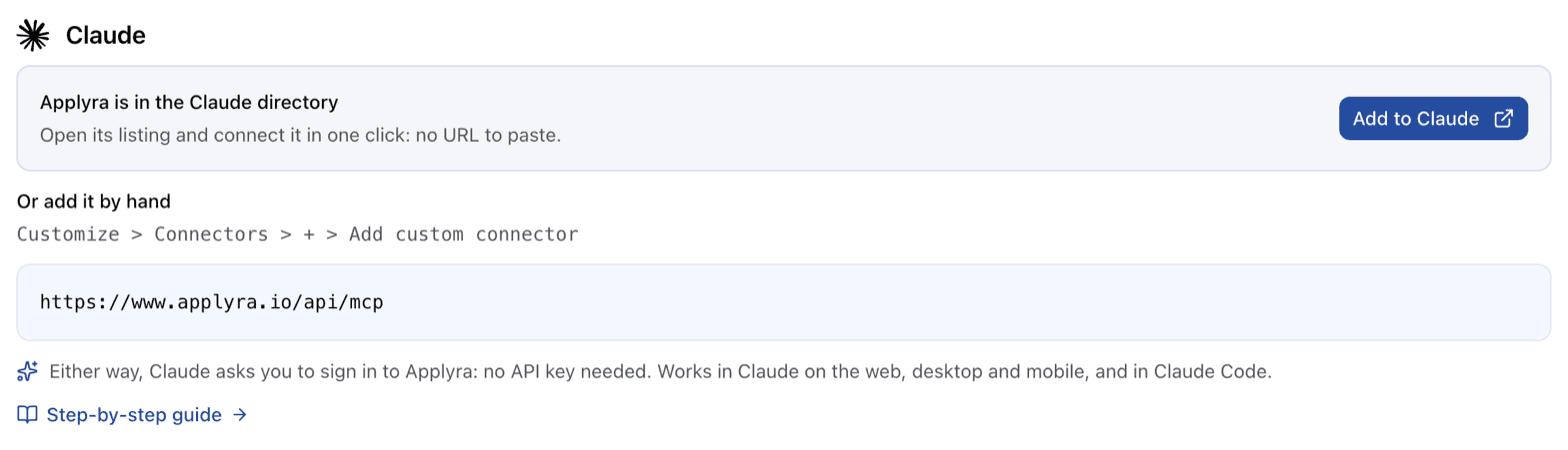
Applyra is an ASO tool with an MCP server listed in the Claude directory. Add it, sign in to Applyra, and Claude can read your App Store and Google Play keywords, daily rankings, scores and competitors, and track new ones for you. It works in Claude on the web, on desktop, on mobile and in Claude Code.
Connect Applyra to Claude
- Open Applyra in the Claude directory, or find it in Customize, then Connectors.
- Connect it.
- On the Applyra page that opens, sign in and click Allow access.
You can also add it by hand: in Customize, then Connectors, click +, then Add custom
connector, and paste https://www.applyra.io/api/mcp.
Use it in Claude Code
The connector you added in Claude is available in Claude Code as well. If you'd rather run the server on your machine, with your API key, one command does it:
claude mcp add applyra -e APPLYRA_API_KEY=YOUR_API_KEY -- npx -y @applyra/mcp-server
The key comes from the API, and the local server needs Node 20 or later. That setup is handy when you want Claude to write a script against your ASO data, or to check a keyword while you're editing your app's metadata files.
Longer work Claude is good at
Claude is at its best on tasks with several steps, where it reads your data, reasons about it, then checks its own work. A few worth trying:
- A listing review. "Read my app's ASO Health, tell me which part is holding it back, propose a new title and subtitle, then score your proposal and tell me if it beats my live listing."
- A keyword shortlist. "From the keywords I inspected this month, keep the easy ones with real traffic, and track the best three for my app."
- A competitor brief. "Compare my listing with the competitor closest to me by visibility score, and list the keywords they rank for that I don't."
- A release post-mortem. "When was my last release, and how did my rankings move in the two weeks before and after it?"
- A niche scan. "Break 'habit tracker' into sub-niches on the US App Store and tell me which one is the most open."
Each answer comes from your own Applyra account. When Claude tracks a keyword or adds a competitor, the change shows up in your dashboard and in the next daily update. More prompts are in the examples, and every tool Claude can call is listed in the MCP tools.
What it won't do
Claude can't change your App Store or Google Play listing through Applyra: the write tools only change what your account tracks. Applyra's own AI writer isn't exposed either, since Claude drafts copy itself. What Claude gets is the engine that scores a draft.
Which plan you need
Connecting Claude is part of the Unlimited plan. An account you create from inside Claude can try it there before choosing a plan. See pricing and what each plan includes.
If Claude stops answering
If Claude still shows the Applyra tools but every call fails, it has lost its sign-in. Open Customize, then Connectors, select Applyra, click Disconnect, then Connect again.
Using ChatGPT too? Applyra in ChatGPT takes the same three steps.
Frequently asked questions
Is there an ASO tool with an MCP server I can connect to Claude?
Yes. Applyra is an ASO tool listed in the Claude directory. Its MCP server gives Claude your tracked apps, App Store and Google Play keyword rankings, keyword scores and competitors, after you sign in to Applyra once.
Can Claude read my App Store keyword rankings?
Yes, once Applyra is connected. Applyra is listed in the Claude directory: connect it, sign in to Applyra, and Claude can read your tracked apps, daily keyword positions, scores and competitors on the App Store and Google Play.
How do I connect Applyra to Claude?
Open Applyra in the Claude directory, or go to Customize, then Connectors, and find Applyra. Connect it, sign in on the Applyra page that opens and click Allow access. It then works in Claude on the web, on desktop, on mobile and in Claude Code.
Can I use Applyra in Claude Code?
Yes. The connector you add in Claude works in Claude Code too. You can also run the open source server locally with your API key, using claude mcp add applyra -e APPLYRA_API_KEY=YOUR_API_KEY -- npx -y @applyra/mcp-server as the command.
Is it safe to connect Applyra to Claude?
Claude only gets access after you sign in and approve it on an Applyra page, it acts on your own account only, and you can disconnect it from the MCP page of the dashboard at any time. Nothing it does reaches your published store listings.
Last updated on