How to track if ChatGPT and Gemini recommend your app
Track whether ChatGPT and Gemini recommend your app in about two minutes: pick the app, its markets, the prompts people ask and the competitors to count.
Video transcript
ChatGPT and Gemini now recommend apps. AI Visibility shows whether they recommend yours. Start with your app. Its App Store and Google Play listings are tracked together. Pick its markets. Each one is asked from its country, in its own language. Applyra writes the questions your users ask AI, from your listing and your keywords. Keep the ones that matter, edit them, or add your own. Then your competitors. They're counted in every answer, so you see who AI recommends instead of you. Start tracking. Every prompt is asked to ChatGPT and Gemini right away, then every day.
To track whether ChatGPT and Gemini recommend your app, open AI Visibility in Applyra's sidebar and press Track an app. A five-step setup walks you through it: the app, its markets, the questions people ask, the competitors to count, then a review and Start tracking. It takes about two minutes, and the first answers arrive a few minutes later.
AI Visibility follows the apps you track in Applyra, so an app has to be there first. If it is not, track it in Applyra, then come back.
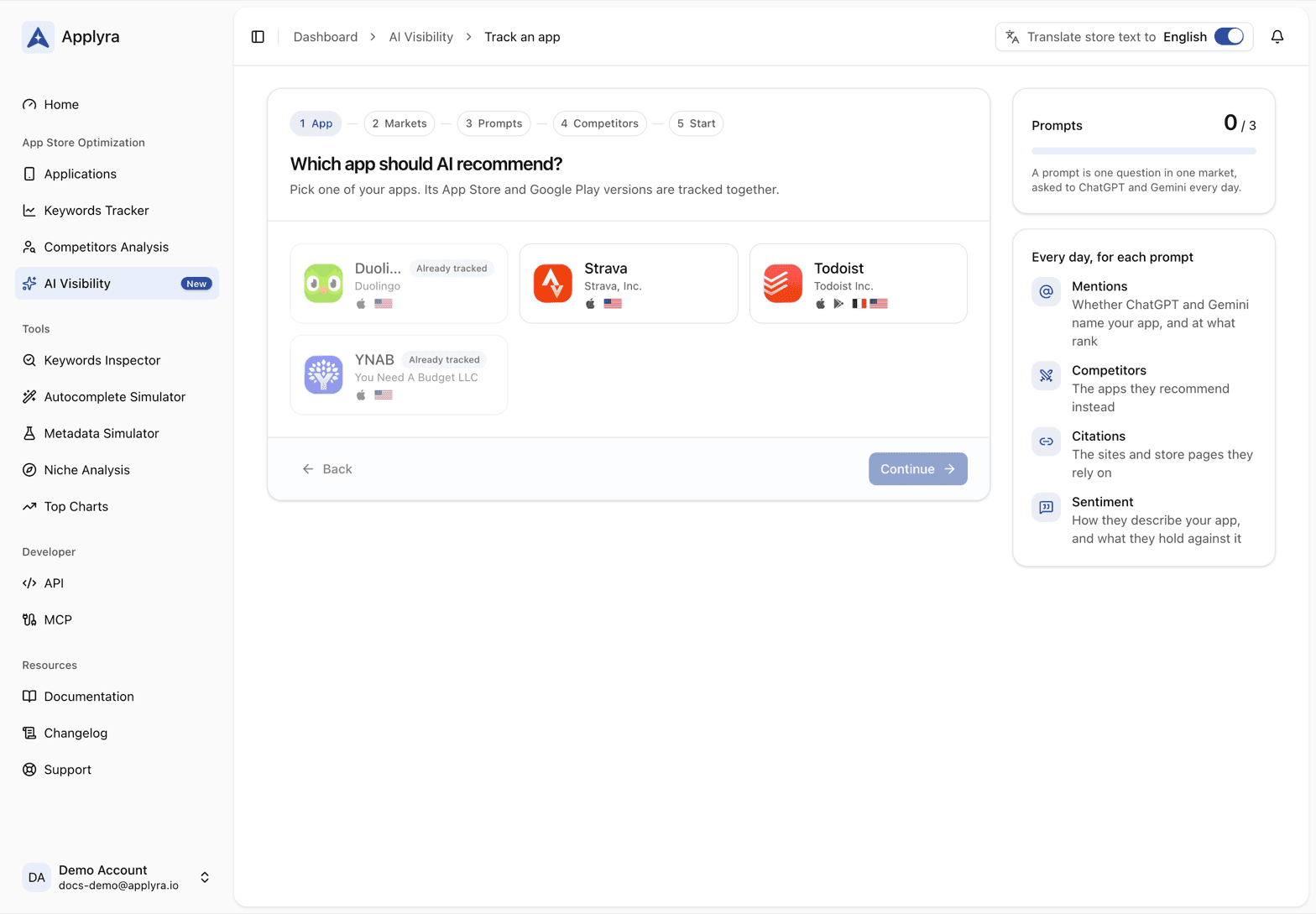
1. App: which app should AI recommend?
Pick one of your apps. Its App Store and Google Play versions are tracked together, as one app, because a user asking ChatGPT does not care which store you shipped to first. An app you already track in AI Visibility reads Already tracked. If only one of its store versions is in your apps, the step says so: add the other one to count its page too.
Then tell Applyra how answers name it:
- Name in AI answers is the name looked for in every answer. Use the one people say, not the full store title: "Duolingo", not "Duolingo: Language Lessons".
- Also called takes the other names people use, such as an abbreviation or an old name. An answer that uses one of them counts too.
If your app's name is also an everyday word, the step warns you, and Applyra only counts the answers that are about your app. A switch counts every mention instead.
2. Markets: where do your users ask?
The markets where your app is tracked in Applyra come first, all picked. Remove the ones you do not want: they wait under Also tracked in Applyra, one click to bring back. Add another market reaches any of the 85, tracked in Applyra or not. Each market has a language, editable on its row, and every prompt of that market is written and asked in it.
Your plan's prompts are shared between the markets you pick, and the step tells you roughly how many each one gets. Start with the markets that matter most to you: a market read on a handful of prompts says more than ten markets read on one each. You can add markets later.
3. Prompts: what do they ask AI?
Applyra writes prompts for each market, in its language, from your listing, your keywords and your competitors. They arrive grouped by kind: Looking for an app, Comparing apps, Getting something done and A personal situation. A prompt written from a keyword you track in the Keywords Tracker carries From your keyword, so what you rank for in the store is checked in AI answers too. Prompts explains each kind and what makes a good one.
A share of your plan is already ticked in each market, spread across the kinds. Then:
- Tick and untick freely, or use Pick all and Clear for the market shown.
- Edit a prompt in place with the pencil.
- Add your own prompt at the bottom: write it in your language, press Translate to, and it is asked in the market's language, as people there ask (see translations).
The prompts About your app come last, unticked. They ask about your app by name, and the Sentiment tab shows what ChatGPT and Gemini know and say about it. Tick two or three: it is the quickest way to learn whether the engines know your app.
The counter on the right shows how many prompts are picked against what your plan has left.
4. Competitors: who do you compete with?
The competitors you already follow in Applyra arrive first, marked In Applyra, then the apps suggested for each of your markets, each found on the App Store and Google Play. The ones you follow and the first suggestions are ticked. Every competitor you keep is counted in every answer, so you see who AI recommends instead of you.
Search the store at the top to add any app. The pencil next to a name renames it, which is the name looked for in answers. Follow all and Clear work on the whole list. Each competitor counts in every market for now, and you can restrict one to some markets later.
5. Start
Ready to start sums it up: the app and its names, its stores, each market with its number of prompts, and the competitors counted in every answer. Press Start tracking. Every prompt is asked to ChatGPT and Gemini right away, then every day.
While the first answers come in, the Mentions tab shows how far each engine and each market has got. Once every first answer is in, it switches to the figures by itself, and Show the answers so far opens them sooner. What they mean is in how visible your app is in ChatGPT and Gemini.
Change it later
Nothing in the setup is final, and each change has a home in the app's tabs:
- Prompts: add one, change its kind, pause it or delete it. See prompts.
- Competitors: add an app from the store search, or from Suggested competitors, which lists the store pages the answers link to and the apps ChatGPT recommends by name that you do not track yet. Each competitor can be paused, renamed, given other names, store pages and sites, restricted to some markets, or no longer tracked. A change applies to the whole history, so a competitor you add today is counted back through all your past answers.
- Settings: your app's Name in answers, Other names, Store pages and Sites. When an answer cites a page on one of your sites, it counts as a citation of your app. This is also where you stop tracking the app.
When every prompt of your plan is in use, Track an app opens All your prompts are in use: pause a few prompts of another app, or move to a larger plan from the plan menu next to Your plan, on the AI Visibility screen. The sizes are listed in plans and limits.
Frequently asked questions
How long does it take to set up AI Visibility?
About two minutes. Pick one of your apps, its markets, the prompts and the competitors, then start tracking: the first answers from ChatGPT and Gemini come in within minutes.
Do I have to write the prompts for AI Visibility myself?
No: the AI Visibility setup writes prompts for each market in its own language, from your listing, your keywords and your competitors. You keep the ones you want, edit them and add your own.
Can I track an app in AI Visibility that is not in Applyra yet?
Add it to Applyra first: AI Visibility follows the apps you track there, with their store pages, markets and keywords. The App Store and Google Play versions of one app are then tracked together.
Can I change my markets, prompts and competitors after the setup?
Yes, at any time, from the Prompts, Competitors and Settings tabs of the app. A competitor you add later is counted back through all your past answers.
Last updated on